
Correlations
Correlations allow you to link trace datasets with logs datasets, enabling you to view related log entries when analyzing distributed traces. Correlating datasets helps you quickly identify the root cause of issues by connecting trace spans to their corresponding application logs.
When troubleshooting distributed systems, you often need to correlate data across multiple sources. A trace might show that a request failed, but the detailed error information is in your application logs. Using correlations, you can:
- Link a single trace dataset to up to five logs datasets.
- View related logs directly from the span details panel.
- Navigate seamlessly between trace analysis and log exploration.
Correlation requirements
Section titled “Correlation requirements”For correlations to work correctly, your logs data must include the following fields that can be mapped to trace context.
| Field | Purpose |
|---|---|
| Trace ID | Links log entries to specific traces |
| Span ID | Links log entries to specific spans |
| Service name | Filters logs by service |
| Timestamp | Orders log entries chronologically |
If your logs do not follow OpenTelemetry conventions, configure schema mappings in your logs dataset to map your custom field names to these standard fields.
Creating a trace-to-logs correlation
Section titled “Creating a trace-to-logs correlation”To create a correlation between a trace dataset and logs datasets, follow these steps:
-
Navigate to Datasets in the left navigation.
-
Select the trace dataset you want to correlate with logs.
-
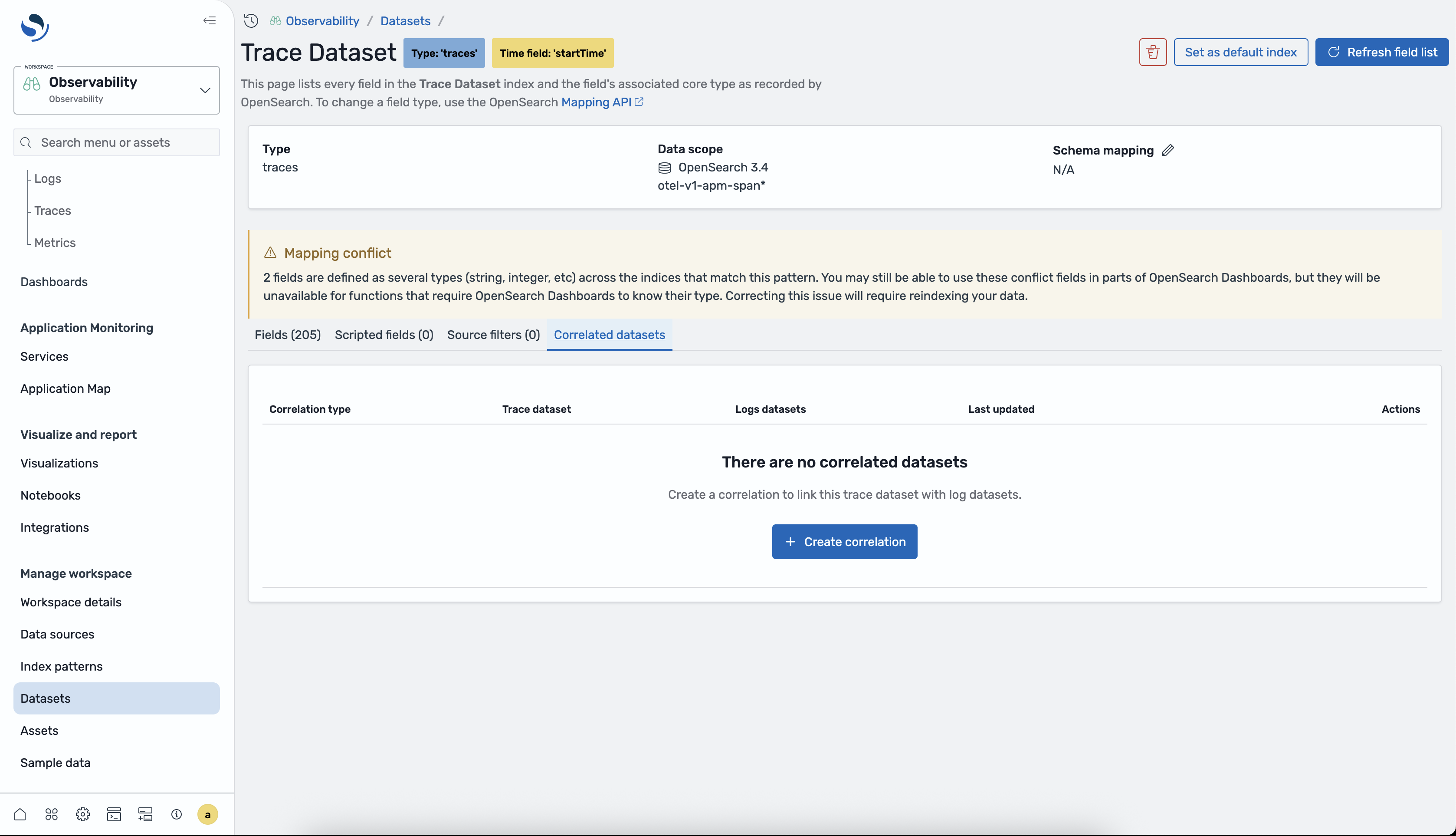
In the dataset details page, select the Correlated datasets tab.
-
Select Configure correlation.
-
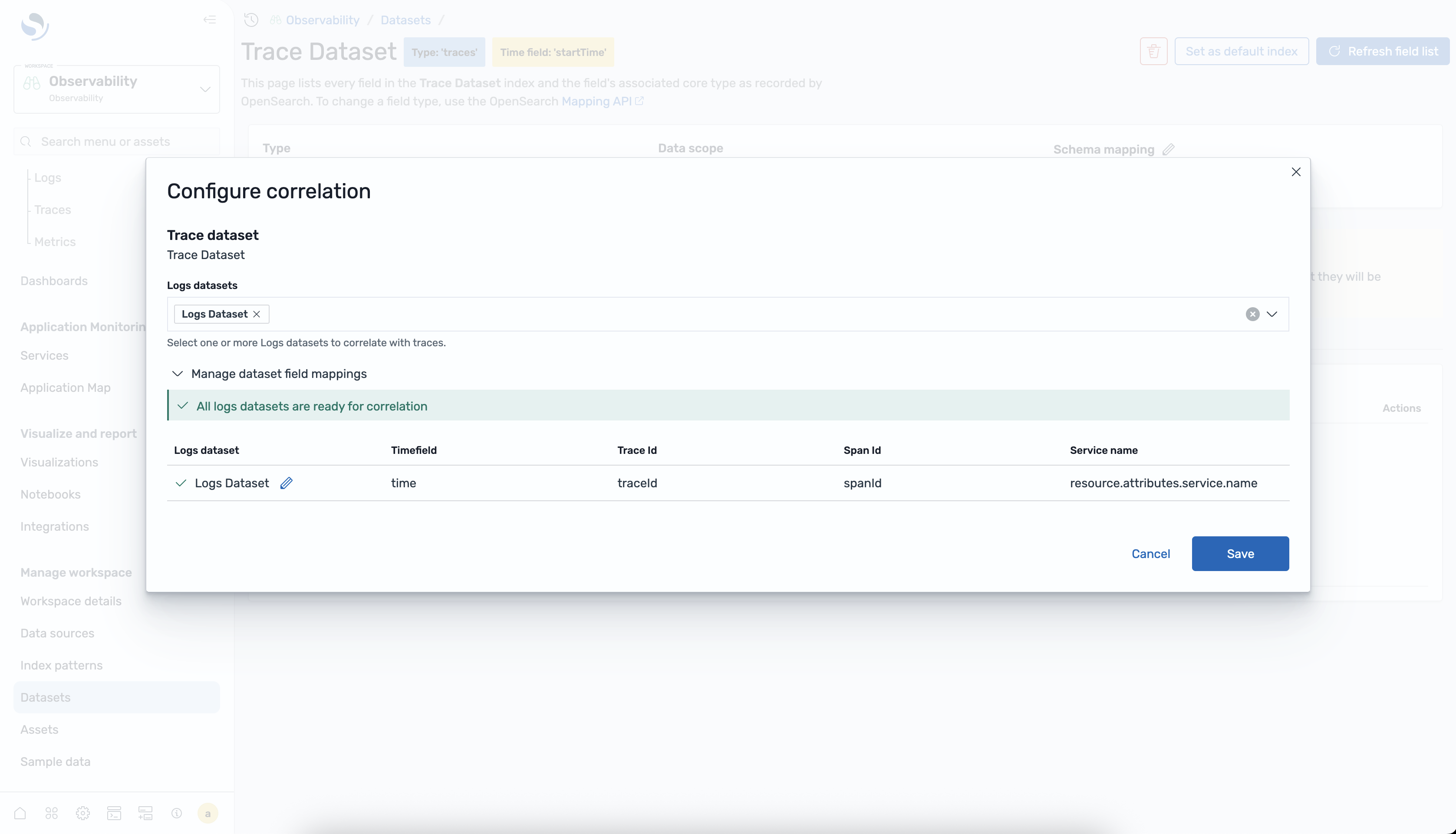
In the Configure correlation dialog, select up to five logs datasets to correlate with this trace dataset.
-
Select Save to create the correlation.
-
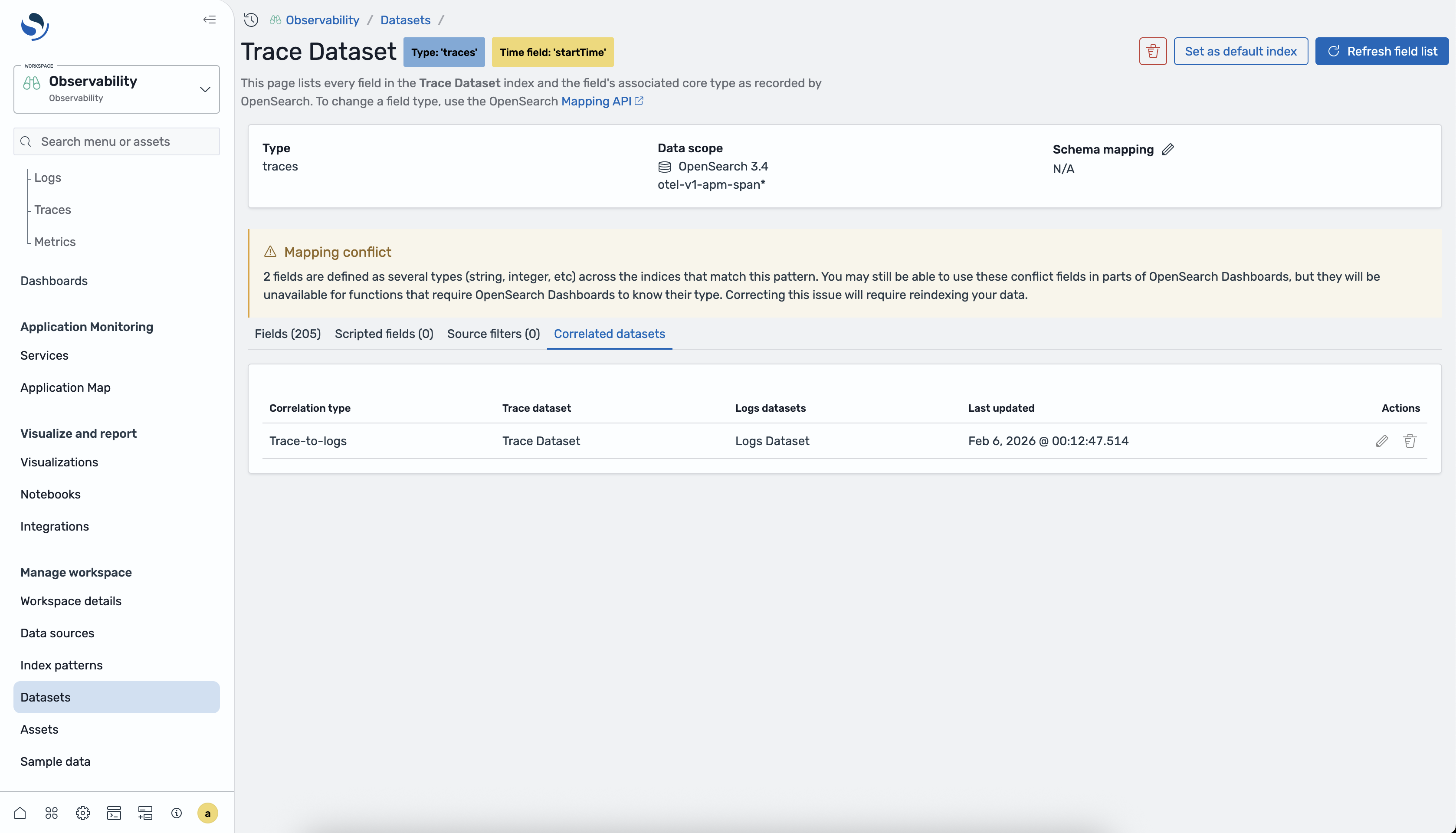
The correlated logs datasets now appear in the Correlated datasets table.
Viewing correlations in logs datasets
Section titled “Viewing correlations in logs datasets”You can view the trace datasets that are correlated with a logs dataset from the logs dataset details:
-
Navigate to Datasets in the left navigation.
-
Select a logs dataset that has been correlated with a trace dataset.
-
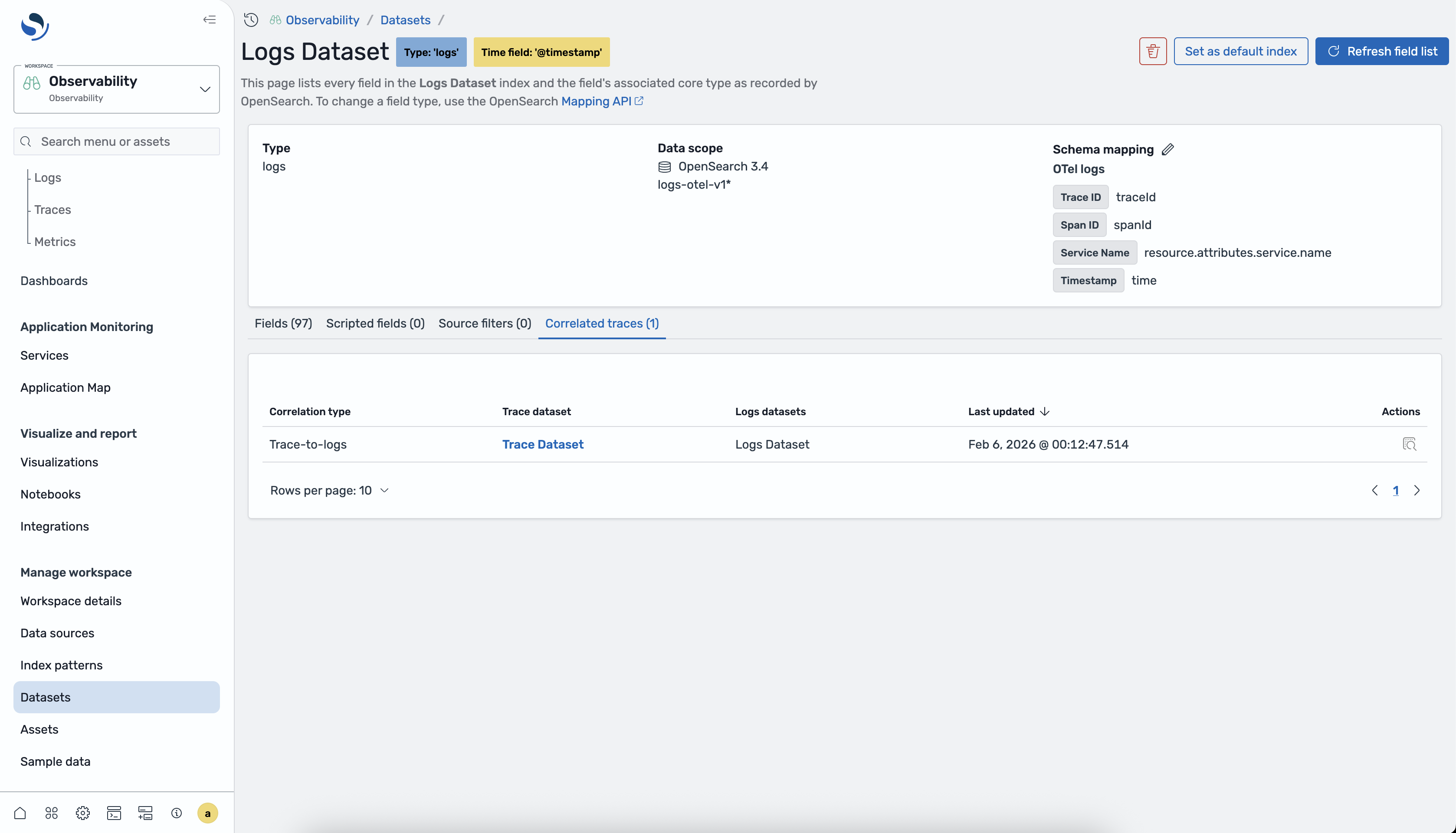
Select the Correlated traces tab to view trace datasets linked with this logs dataset.
Using correlations in the Traces page
Section titled “Using correlations in the Traces page”After creating correlations, you can access related logs when analyzing traces.
Viewing related logs in span details
Section titled “Viewing related logs in span details”-
Navigate to Discover > Traces.
-
Select a trace to view its details.
-
Select a span within the trace to open the Span details.
-
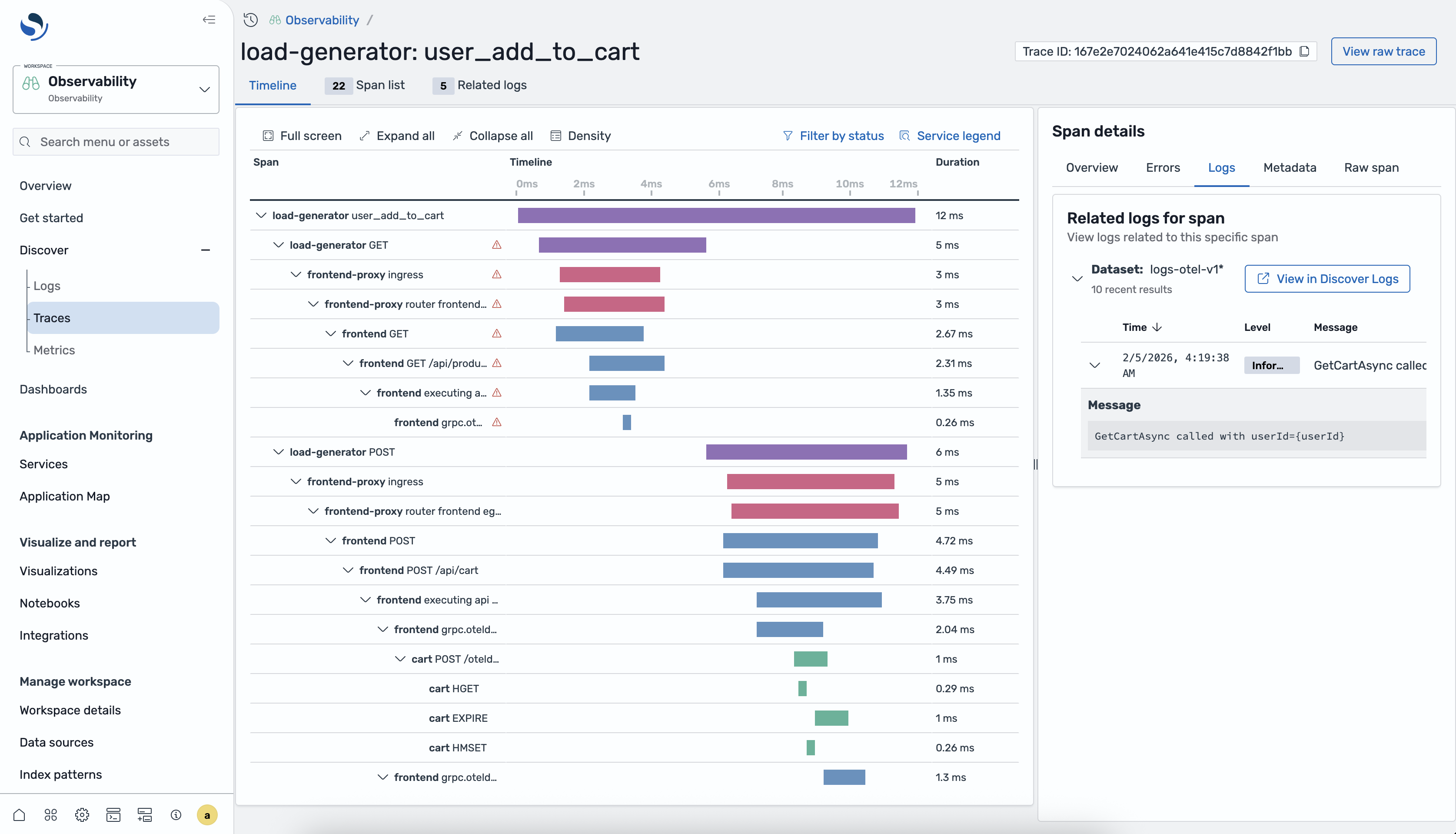
In Span details, select the Logs tab to open Related logs. The related logs are retrieved by matching the trace ID from the span to log entries in your correlated logs datasets.
-
Select a log entry to view its full details or navigate to the Logs page for further exploration.
Managing correlations
Section titled “Managing correlations”You can edit or remove correlations from the trace dataset details page.
Editing correlations
Section titled “Editing correlations”To modify an existing correlation, follow these steps:
- Navigate to Datasets in the left navigation and select the trace dataset you want to modify.
- Select the Correlated datasets tab.
- Select Configure correlation to modify the list of correlated logs datasets.
- Add or remove datasets as needed.
- Select Save to apply changes.
Removing correlations
Section titled “Removing correlations”To remove a correlation:
- Navigate to Datasets in the left navigation and select the trace dataset you want to modify.
- Select the Correlated datasets tab.
- Delete the configured correlations using the delete icon.