

Application Monitoring
Application Monitoring gives you a real-time view of how your services are performing. It combines topology data stored in OpenSearch with time-series RED metrics (Rate, Errors, Duration) stored in Prometheus to surface health, latency, throughput, and error information across your distributed system.
Navigation
Section titled “Navigation”In OpenSearch Dashboards, navigate to Observability > Application Monitoring. The sidebar shows:
- Services - catalog of all instrumented services with filtering, detail views, and correlation links
- Application Map - interactive topology graph of service dependencies
Key capabilities
Section titled “Key capabilities”Application Map
Section titled “Application Map”A live topology view of your distributed system. Filter by fault rate, error rate, or environment. Group services by any attribute configured in Data Prepper (such as telemetry.sdk.language). Click any service node to see health breakdowns and metric charts in a side panel. See Application Map for details.
Services catalog
Section titled “Services catalog”A filterable table of all instrumented services showing latency (P99), throughput, failure ratio, and environment. Panels above the table highlight the top services and dependency paths by fault rate. See Services for details.
Service detail
Section titled “Service detail”Drill into any service to see three tabs:
- Overview - KPI cards (throughput, fault rate, error rate, availability, latency P99) with sparklines and trend arrows, latency by dependencies, requests by operations, and availability by operations charts.
- Operations - table of all operations with expandable rows showing per-operation request, fault, error, and latency charts.
- Dependencies - table of downstream dependencies with expandable rows showing per-dependency charts.
Correlations
Section titled “Correlations”From any service or operation, open correlation flyouts to jump directly to related spans and logs. Correlation icons appear throughout the Services and Operations tables, linking APM data to the traces and logs in the Investigate section.
How it works
Section titled “How it works”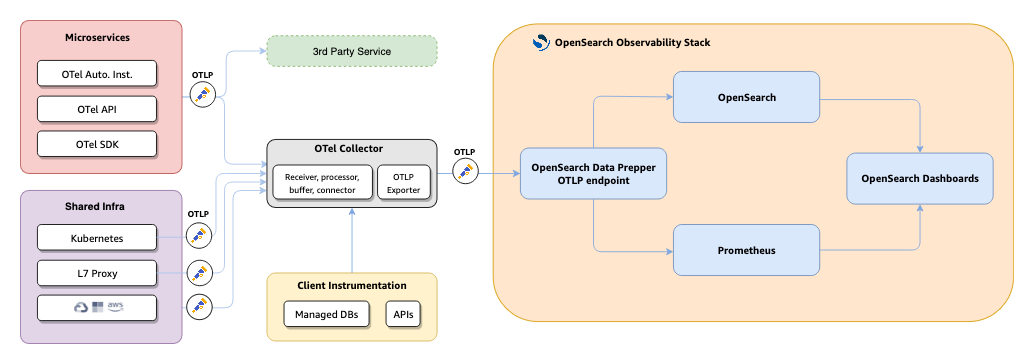
- Your applications and infrastructure emit telemetry via OpenTelemetry SDKs, auto-instrumentation, or the OTel API to the OTel Collector.
- The Collector forwards trace data to Data Prepper over OTLP.
- Data Prepper’s
otel_apm_service_mapprocessor extracts service-to-service relationships and computes RED metrics. - Topology and raw trace data are indexed into OpenSearch. RED metrics are exported to Prometheus via remote write.
- OpenSearch Dashboards queries both stores to render the Application Map, Services catalog, and service detail views.
Configuring APM
Section titled “Configuring APM”To set up APM, complete the following steps:
-
Create an Observability workspace - APM features are only available within Observability workspaces. To learn how to enable and create workspaces, see Workspace for OpenSearch Dashboards.
-
Instrument your application - integrate OpenTelemetry SDKs into your application code to generate trace and log data. See the Send Data section for instrumentation guides.
-
Configure telemetry ingestion - set up the OpenTelemetry Collector and Data Prepper to process and route telemetry to OpenSearch and Prometheus. See Configuring Telemetry Ingestion.
-
Configure APM in OpenSearch Dashboards - create datasets, index patterns, and connect data sources in your Observability workspace. See Setting Up APM.
Note: APM is distinct from the older Trace analytics and Application analytics features. APM provides a more integrated experience that combines service topology, RED metrics, and in-context correlations into a single workflow.
Sizing and capacity planning
Section titled “Sizing and capacity planning”Use the APM Sizing Calculator to estimate storage, metrics, and ingest requirements based on your workload — before you deploy or as you plan to scale.
Prerequisites
Section titled “Prerequisites”- Data Prepper running with the trace analytics pipelines enabled (see Configuring Telemetry Ingestion for the full pipeline configuration)
- Trace data flowing via OTLP to the OTel Collector
- Prometheus configured to receive remote write from Data Prepper
- OpenSearch Dashboards with the Observability plugin and feature flags enabled (see Configuring APM above)