

Discover Traces
The Discover Traces page in OpenSearch Dashboards provides an enhanced way to explore and analyze trace data within the Observability plugin. This page extends the traditional Discover experience by offering specialized capabilities for working with trace data.
Accessing the Traces page
Section titled “Accessing the Traces page”To access the Traces page:
- Navigate to an Observability workspace in OpenSearch Dashboards.
- In the left navigation, expand Discover and select Traces.
Configuring trace datasets
Section titled “Configuring trace datasets”To configure trace datasets, use one of the following options.
Automatic dataset creation
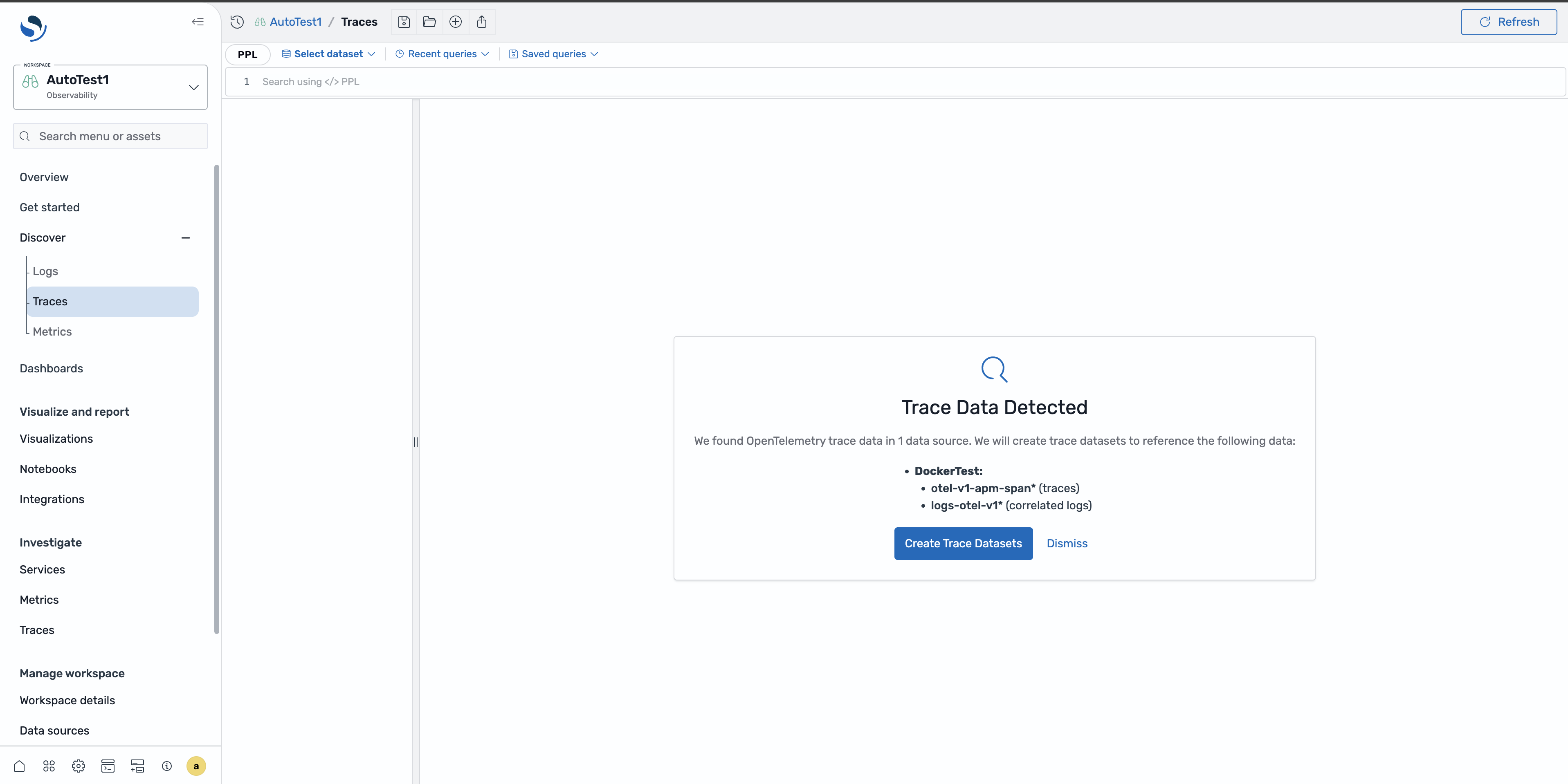
Section titled “Automatic dataset creation”If your data source follows the OpenTelemetry naming conventions, the Traces page can automatically create trace and log datasets from your data by searching for indexes with the following naming patterns:
- Traces:
otel-v1-apm-span* - Correlated logs:
logs-otel-v1*
When these indexes are detected, select the Create Trace Datasets button to automatically generate the datasets and establish the correlation relationship between traces and logs.
Manual dataset creation
Section titled “Manual dataset creation”If your indexes use different naming conventions, you must manually create the datasets and configure the correlation relationships between traces and logs. Navigate to the Datasets tab and create a dataset with the Trace signal type.
Exploring trace data
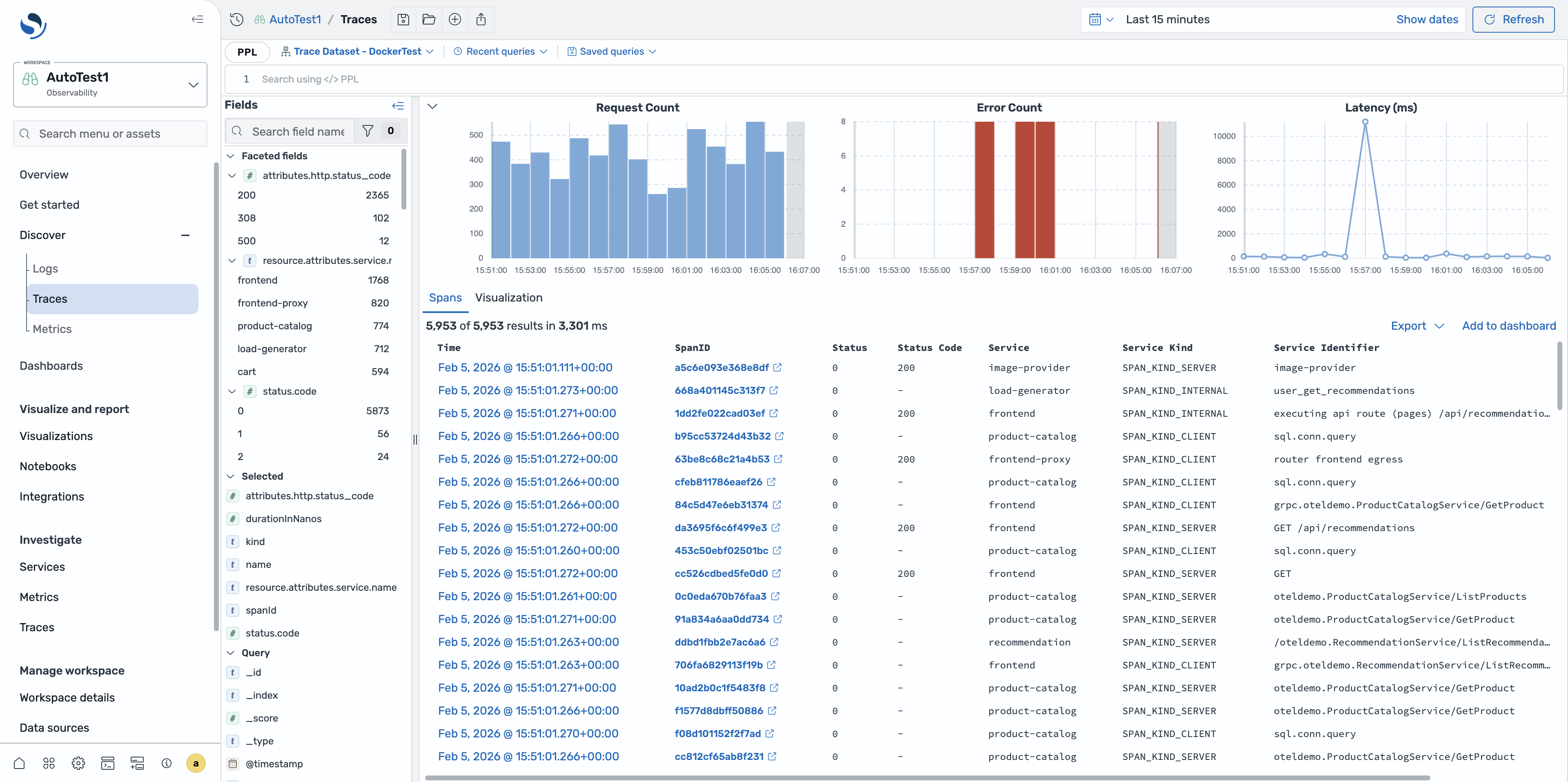
Section titled “Exploring trace data”The Traces page provides comprehensive tools for analyzing span data and understanding trace performance, including:
- RED metrics: View rate, error, and duration metrics at the top of the page to quickly assess trace performance and health.
- Faceted fields: Use faceted field filters to filter and analyze specific aspects of your traces.
- Span table: Browse spans using sortable columns and quick access to detailed information.
Viewing a specific span
Section titled “Viewing a specific span”To view detailed information about a specific span, select the timestamp in the span table. This opens the Trace Details flyout.
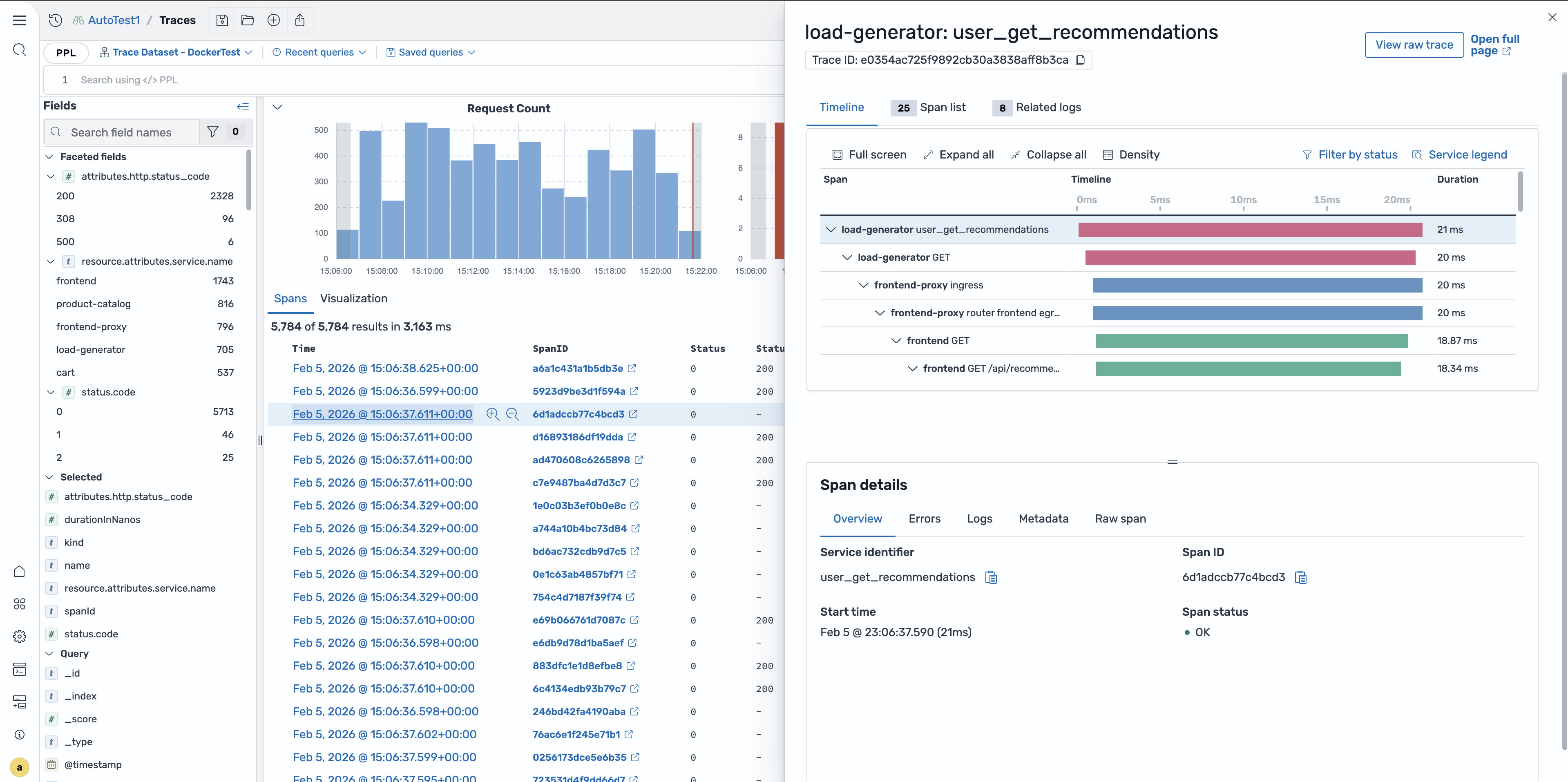
The Trace Details flyout displays the following information:
- The relationship of the selected span within its parent trace.
- The hierarchical structure showing how the span relates to other spans in the same trace.
- The span attributes and metadata.
Trace detail page
Section titled “Trace detail page”To access the full trace detail page from the Trace Details flyout, use one of the following options:
- Select the span ID from the Traces page table.
- Select Open full page from the flyout.
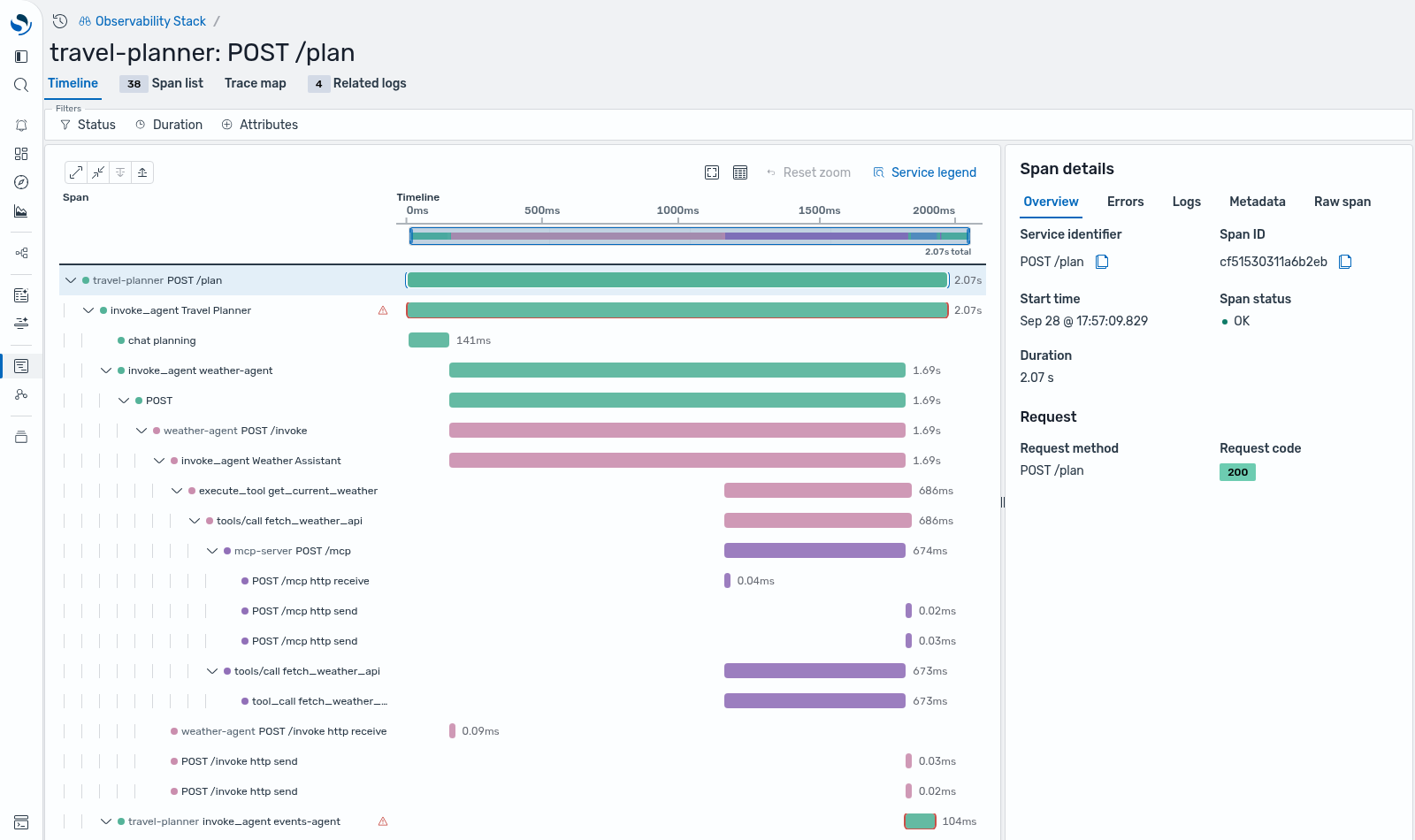
The full page view provides an expanded interface for deeper trace analysis, featuring a timeline visualization that shows the hierarchical span relationships and durations, along with detailed span information in a side panel. The page has four tabs: Timeline, Span list, Trace map, and Related logs.
Reading the timeline
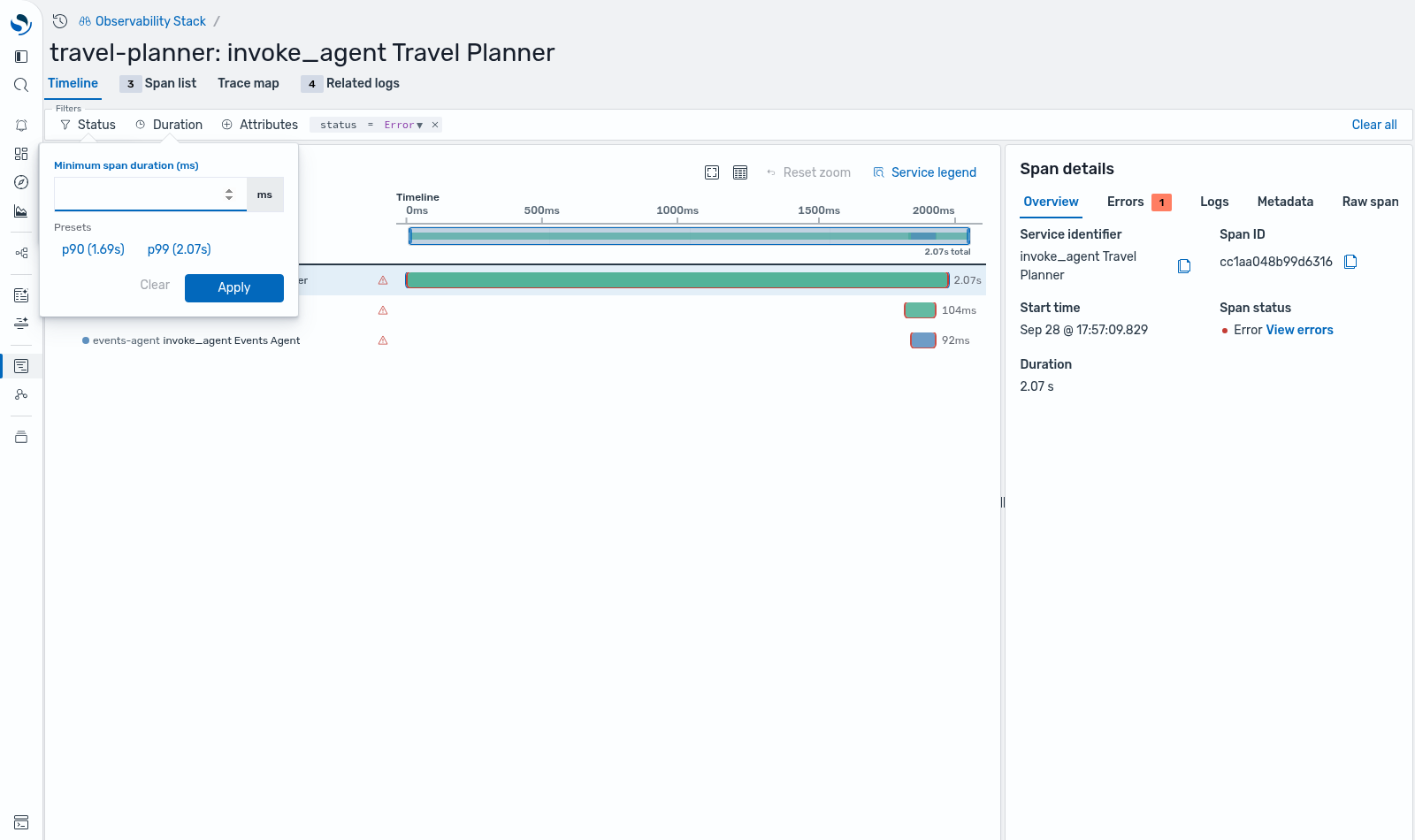
Section titled “Reading the timeline”The Timeline tab shows the trace as a waterfall:
- Each bar is colored by service. Select Service legend to see which color maps to which service.
- Each span’s duration appears at the end of its bar.
- Error spans are outlined in red and marked with a warning icon.
- Light vertical guides show nesting depth. The service name appears only when it changes from the row above.
Use the toolbar above the waterfall to control the view:
| Control | What it does |
|---|---|
| Expand all / Collapse all | Expands or collapses the entire span tree. |
| Expand one level / Collapse one level | Moves the whole tree one level at a time. Disabled at the top and bottom levels. |
| Full screen | Opens the timeline in full screen. |
| Density | Switches row density between Compact, Normal, and Expanded. |
| Reset zoom | Restores the full trace duration after you zoom. |
To zoom, drag the slider under the time ruler. The bars and ruler rescale to the selected window, and spans outside it are dimmed.
Filtering spans
Section titled “Filtering spans”The Filters bar above the tabs narrows the timeline, span list, and trace map at the same time:
- Status: Show only spans with the Error, OK, or Unset status.
- Duration: Show only spans at least as long as a minimum duration. Enter a value in milliseconds, or select a p90 or p99 preset calculated from the current trace.
- Attributes: Filter on any span field with
=or!=. Choose the field from the dataset’s field list, then pick a value from the loaded spans or type one.
Each applied filter appears as a pill, such as status = Error. Select a pill to edit its value, select its x to remove it, or select Clear all to remove every filter. Status and Duration filters apply instantly without querying the cluster again.
Viewing the trace map
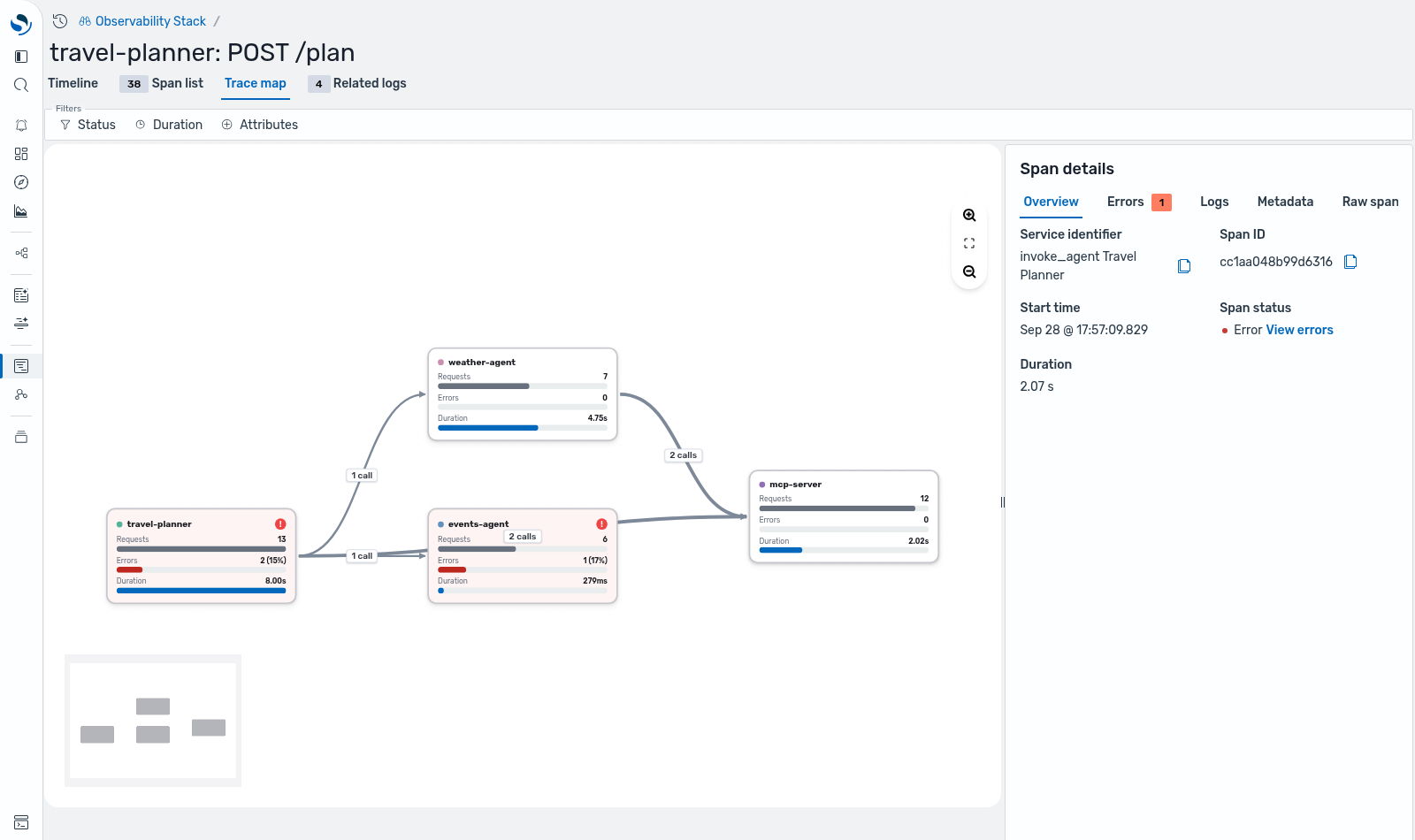
Section titled “Viewing the trace map”The Trace map tab shows how the services in the trace call each other:
- Each service is a card with Requests, Errors, and Duration bars. Services with errors show an error marker.
- Edges get thicker as call volume increases and are labeled with the call count.
- Select a service card to add a
serviceNamefilter that scopes the whole page to that service.
You can drag cards, zoom, and fit the map to the view. A minimap appears on the full page but not in the flyout.
Correlating traces with logs
Section titled “Correlating traces with logs”The Traces page provides seamless integration with log data, allowing you to navigate from traces to related logs while preserving proper context.
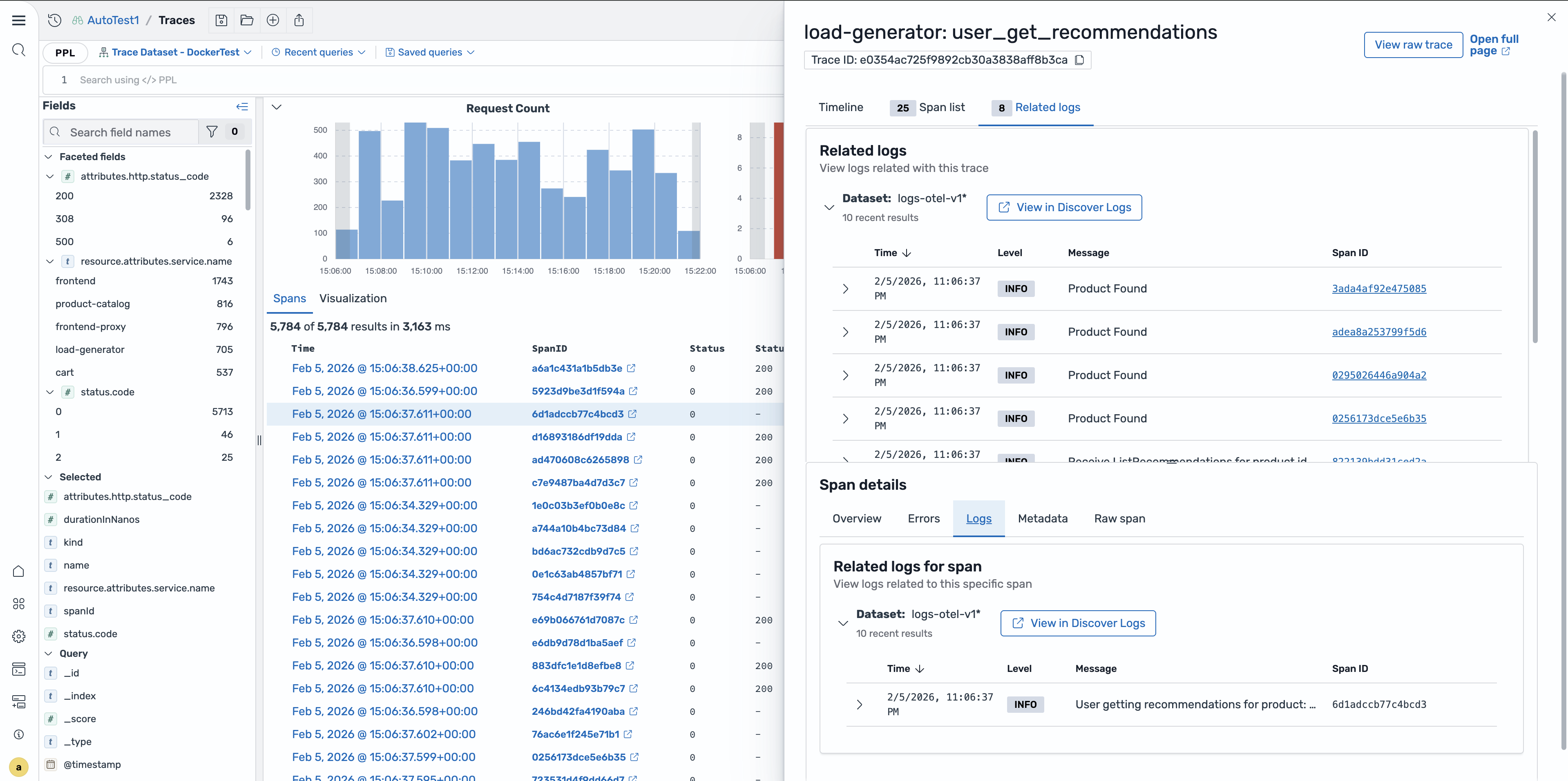
Viewing related logs
Section titled “Viewing related logs”To view the related logs, follow these steps:
- In the Trace Details flyout, locate the Related logs section.
- Select the View in Discover Logs button to navigate to the correlated log entries for the selected trace.
Log redirection with context
Section titled “Log redirection with context”When you select View in Discover Logs, OpenSearch Dashboards automatically redirects you to the Logs page with the trace context applied.
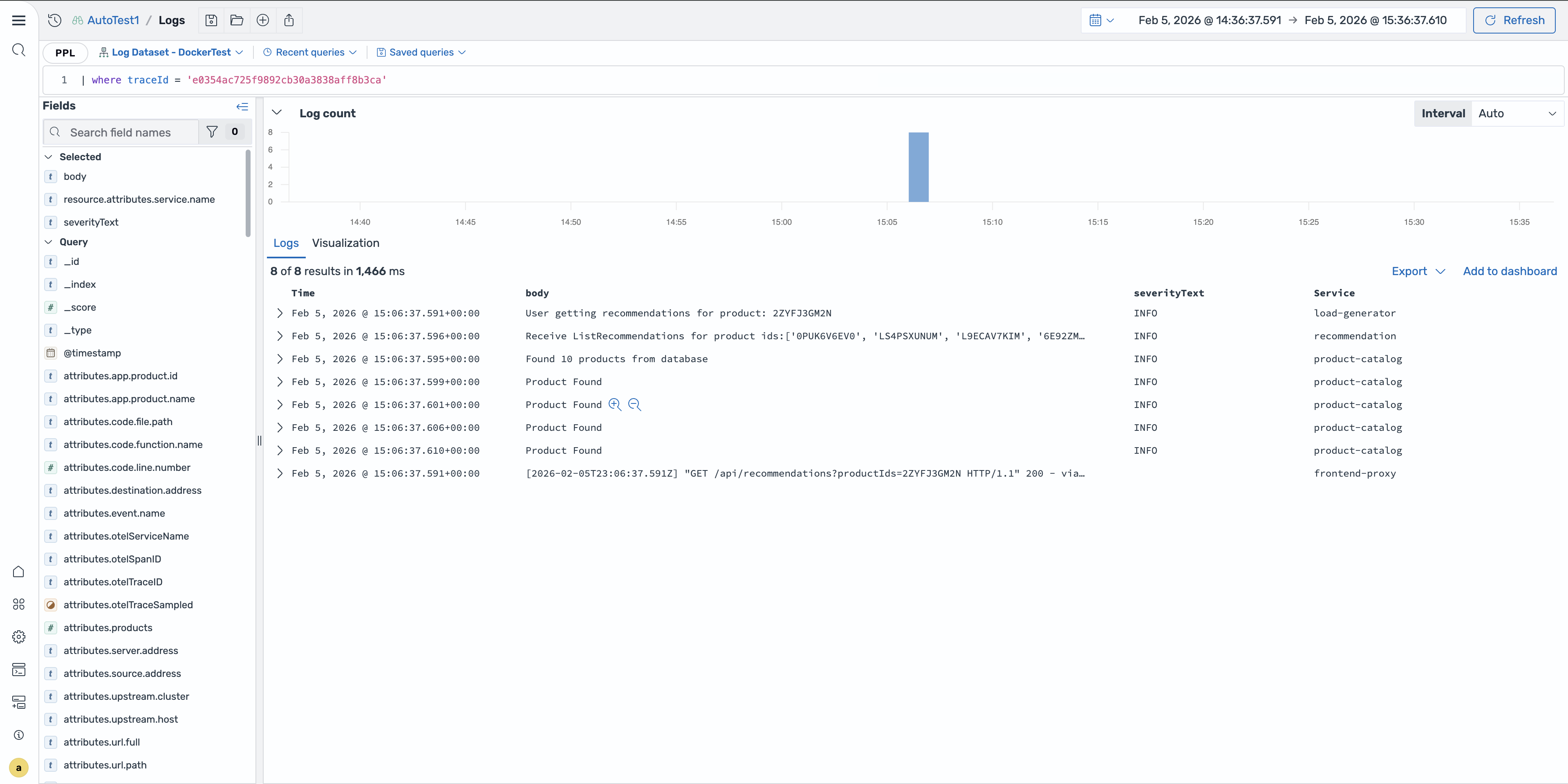
The logs are filtered to show only entries related to the selected trace, making it easier to troubleshoot issues and understand the full context of trace events. Preserving context streamlines the debugging process by providing a unified view of your telemetry data, helping you identify root causes and understand the complete picture of application behavior.