

Datasets
A dataset represents a collection of indexes that you want to analyze together. Datasets provide a user-friendly way to organize and access your observability data in OpenSearch Dashboards. Datasets allow you to assign types, names, and descriptions to your data sources and indexes, making it easier to work with logs and traces.
For log analytics use cases, datasets are the recommended way to define the data you want to analyze. They build on index patterns rather than replacing the underlying storage, while adding the semantic information that the observability Discover experience relies on.
Why datasets over index patterns
Section titled “Why datasets over index patterns”An index pattern identifies a set of OpenSearch indexes by name and knows their fields and time field — and nothing more. A dataset adds the context that makes logs and traces easier to work with:
- Enhanced functionality on logs and traces pages: The Logs and Traces Discover pages consume datasets, and datasets unlock their time-based features there — the histogram, time-range controls, and signal-specific views.
- Signal typing: A dataset declares whether it holds logs or traces. OpenSearch Dashboards uses this to route the dataset to the right specialized page — a logs dataset opens in Discover > Logs, a traces dataset in Discover > Traces. Index patterns are untyped, so the experience cannot be tailored to the signal.
- OpenTelemetry schema mappings: Datasets map non-standard field names to OpenTelemetry concepts (trace ID, span ID, service name, timestamp), even when the raw data does not use OpenTelemetry field names.
- Correlation: Because fields are mapped to OpenTelemetry concepts, datasets power correlations — jumping from a log entry to the trace that produced it.
- User-friendly definitions: Datasets get descriptive names and descriptions instead of relying on raw index pattern syntax, and are shared across a workspace so teams use a common vocabulary for their data.
Datasets vs. index patterns at a glance
Section titled “Datasets vs. index patterns at a glance”| Aspect | Index pattern | Dataset |
|---|---|---|
| Signal typing | None | Logs or traces |
| OpenTelemetry schema mappings | None | Yes |
| Correlation between logs and traces | None | Yes |
| Friendly name and description | Limited | Yes |
| Where it appears | Classic Discover | Observability workspace (Discover Logs and Traces, and when creating visualizations) |
Dataset types
Section titled “Dataset types”OpenSearch supports the following dataset types.
| Type | Description | Use case |
|---|---|---|
| Logs | Generic log data for analytics and exploration | Application logs, system logs, access logs |
| Traces | OpenTelemetry span data ingested through OpenSearch Data Prepper | Distributed tracing, performance monitoring |
Creating a logs dataset
Section titled “Creating a logs dataset”To create a logs dataset, follow these steps:
-
In the workspace left navigation, select Datasets.
-
Select Create dataset and choose Logs from the dropdown menu.
-
In Step 1: Select data, select your data source. You can use wildcard patterns (for example,
logs-*) to match multiple indexes.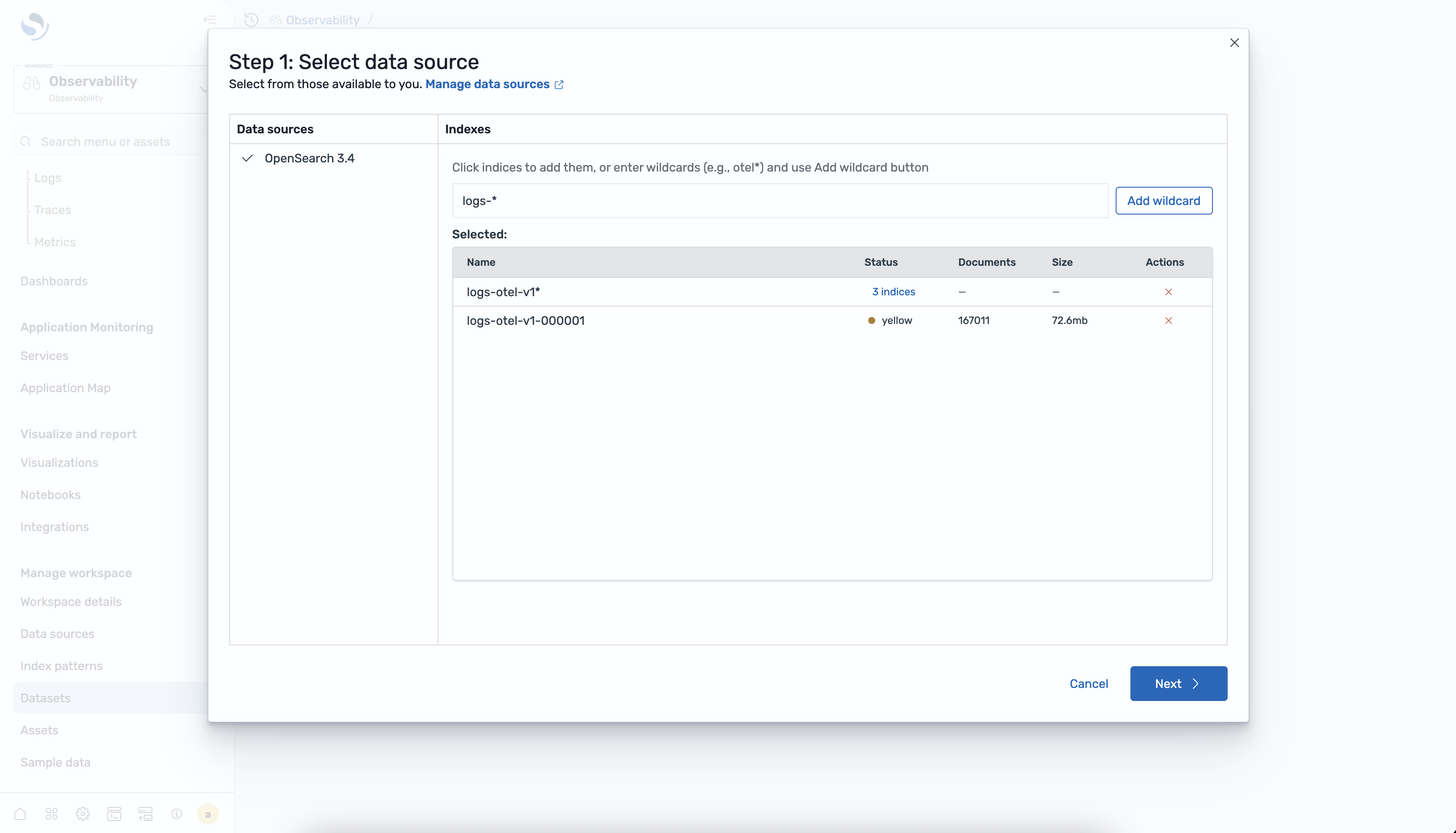
-
In Step 2: Configure data, configure the dataset settings.
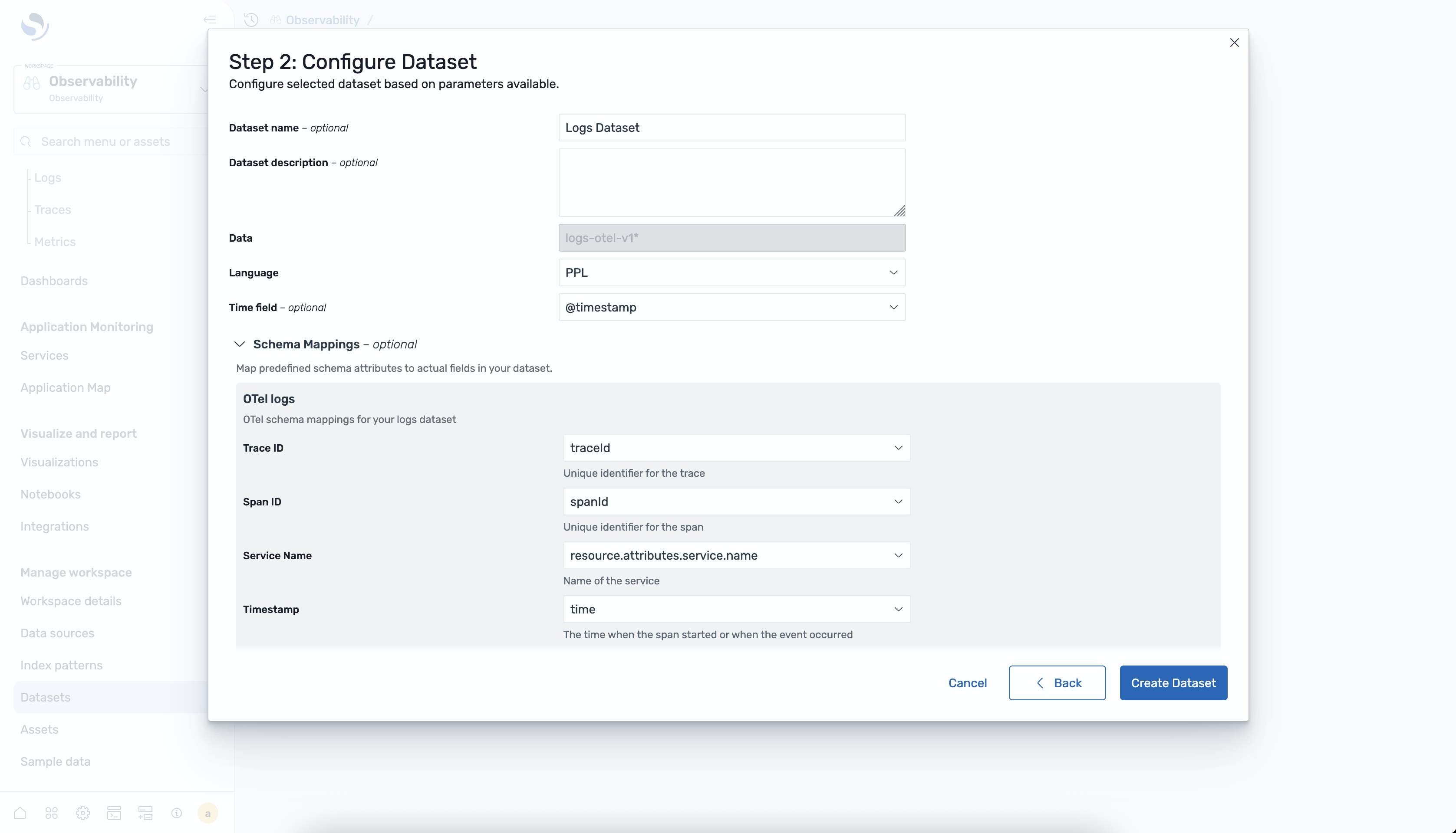
You can configure the following settings:
- Name — Enter a descriptive name for the dataset.
- Description (Optional) — Add the data description.
- Time field: Choose the timestamp field for time-based queries.
- Schema mappings (Optional) — Map your log fields to standard OpenTelemetry fields for correlation with traces:
- Trace ID field: The field containing trace identifiers.
- Span ID field: The field containing span identifiers.
- Service name field: The field containing service names.
- Timestamp field: The field containing event timestamps.
-
Select Create dataset to save your configuration.
Creating a traces dataset
Section titled “Creating a traces dataset”To create a traces dataset, follow these steps:
-
In the workspace left navigation, select Datasets.
-
Select Create dataset and choose Traces from the dropdown menu.
-
In Step 1: Select data, select your trace data source. The data source must reference indexes containing OpenTelemetry span data ingested using Data Prepper.
-
In Step 2: Configure data, configure the dataset settings.
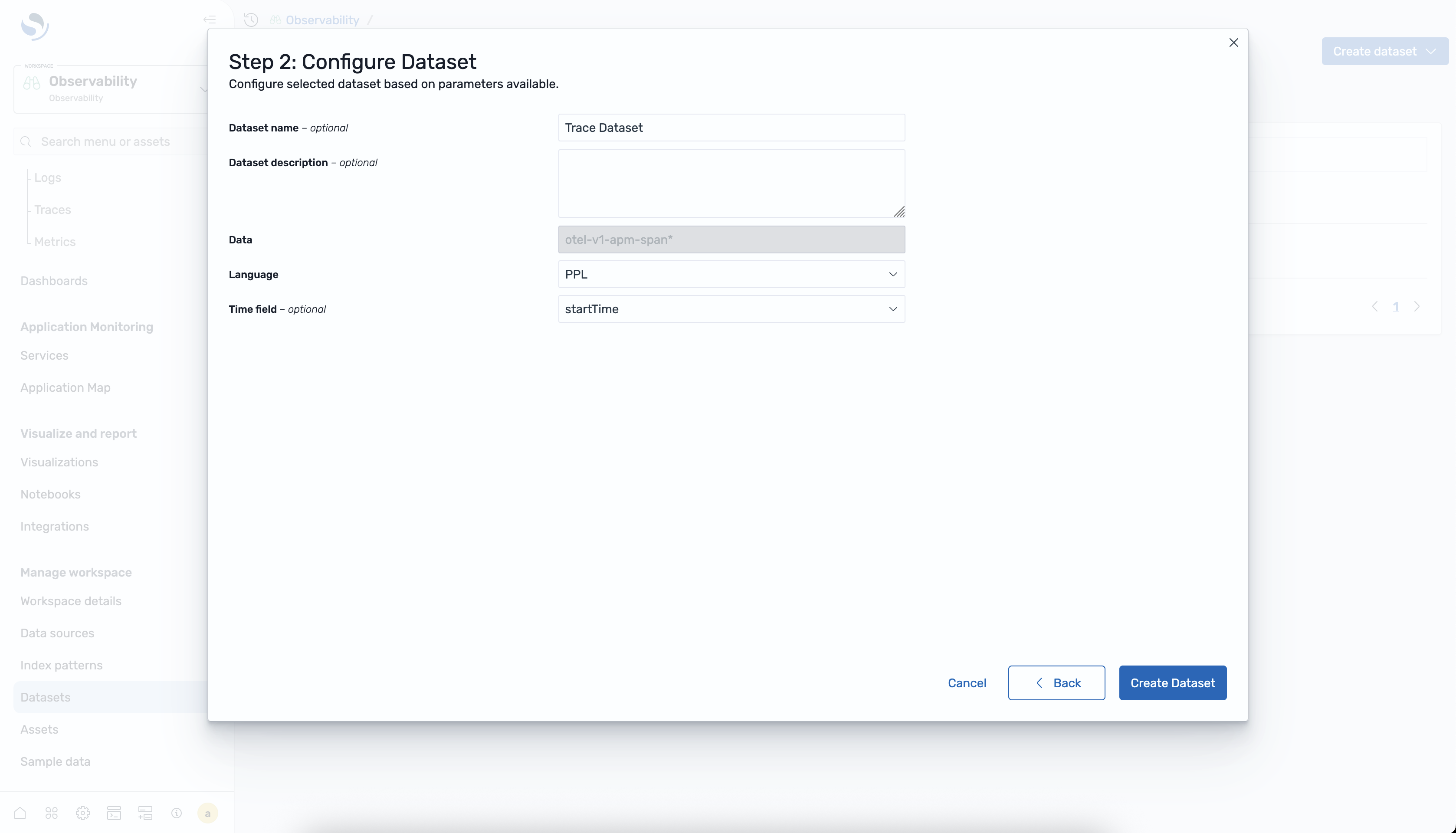
You can configure the following settings:
- Name — Enter a descriptive name for the dataset.
- Description (Optional) — Add the data description.
- Time field — Choose the timestamp field (typically,
startTimeor@timestamp).
-
Select Create dataset to save your configuration.
Viewing datasets
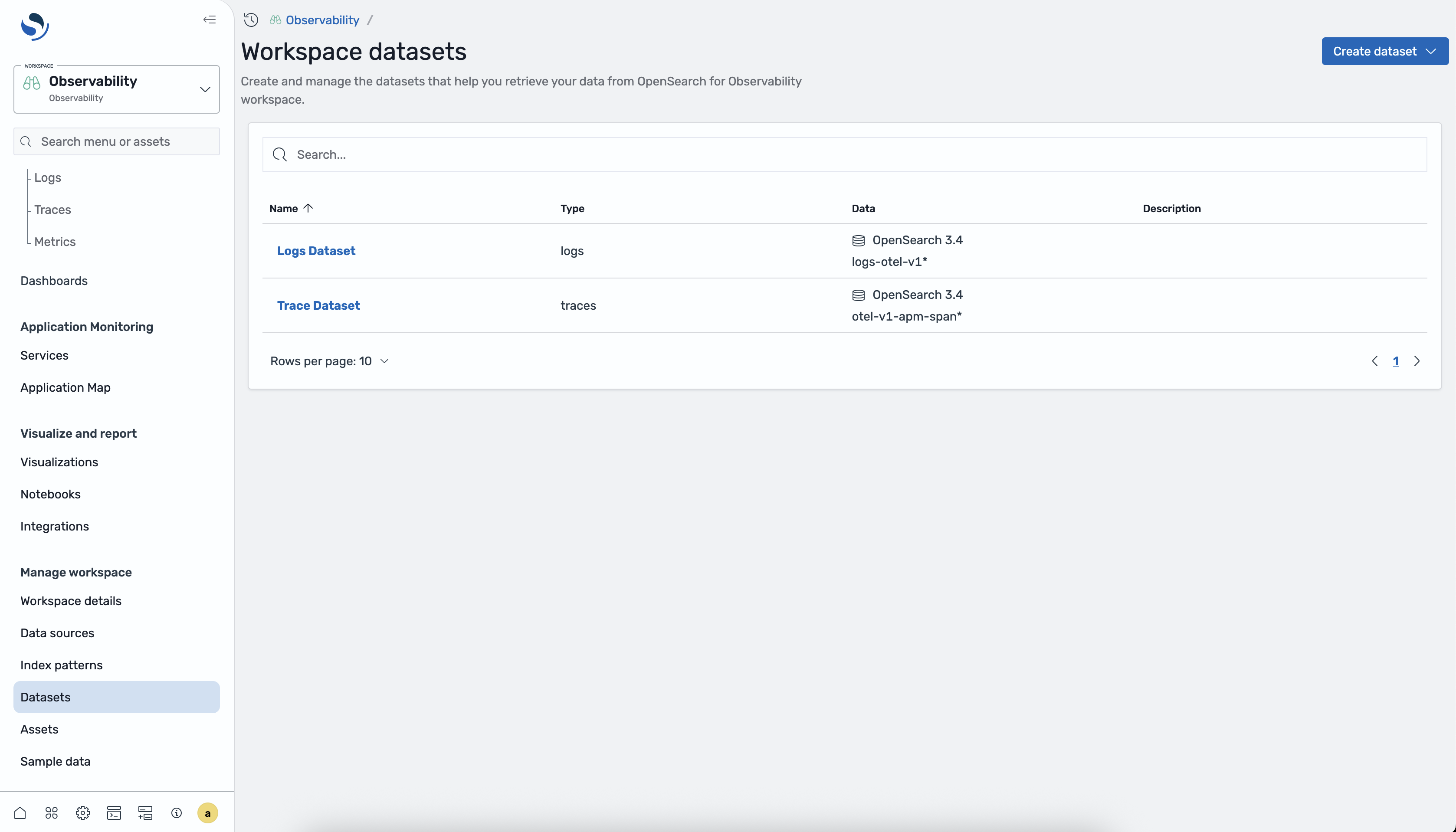
Section titled “Viewing datasets”After creating datasets, you can view and manage them from the Datasets page using the following steps:
-
In the workspace left navigation, select Datasets.
-
The list view displays all datasets with their names, types, and data sources.
-
Select a dataset to view its details, including configuration settings and any correlations.
Analyzing datasets in Discover pages
Section titled “Analyzing datasets in Discover pages”Datasets integrate with the Discover interface for exploring your data.
Logs datasets
Section titled “Logs datasets”To analyze logs datasets, follow these steps:
- Navigate to Discover > Logs.
- From the dataset selector, select your logs dataset.
- Use Piped Processing Language (PPL) queries to explore and analyze your log data.
Traces datasets
Section titled “Traces datasets”To analyze traces datasets, follow these steps:
- Navigate to Discover > Traces.
- Select your traces dataset from the dataset selector.
- Explore span data and trace flows.
Relationship to index patterns
Section titled “Relationship to index patterns”Datasets do not introduce a separate store. A saved dataset is persisted as an index-pattern saved object, with the dataset-specific attributes (such as signal type and schema mappings) carried alongside on the same object. (Ad-hoc datasets are held as temporary, in-memory index patterns with no backing saved object.) This is what allows saved datasets and index patterns to coexist:
- Shared storage, no migration. A dataset created in an observability workspace is visible as an index pattern to the classic Discover experience, and an existing index pattern appears in the dataset selector. There is no separate set of definitions to keep in sync.
- Existing workflows keep working. Teams using the classic Discover experience continue to work with index patterns exactly as before. They simply do not see the dataset-only enhancements (signal typing and OpenTelemetry schema mappings for correlation).
- The management view is workspace-scoped. The Datasets management page appears inside an observability workspace; outside of it, the navigation shows the classic Index patterns page. Both operate on the same underlying objects.
As a result, teams can adopt datasets when they move to an observability workspace without losing access to data defined elsewhere, and can transition team by team rather than all at once.
Enabling datasets
Section titled “Enabling datasets”Datasets are surfaced through the observability workspace and its Discover experience, which is configured at the cluster level. The intended setup enables the workspace, data source, and new Discover experiences together:
data_source.enabled: trueworkspace.enabled: trueexplore.enabled: trueEnabling the new Discover experience also turns on the related query settings it depends on (such as the new saved-queries UI, query enhancements, the new home page, and the default theme). The workspace and data_source flags are independent and must be enabled separately, as shown above. Once configured, create and manage datasets from the Datasets page inside an observability workspace.