
Discover Metrics
The Metrics page in OpenSearch Dashboards provides a dedicated interface for discovering, querying, and visualizing time-series metric data. This page, shown in the following image, is optimized for working with Prometheus metrics using PromQL.
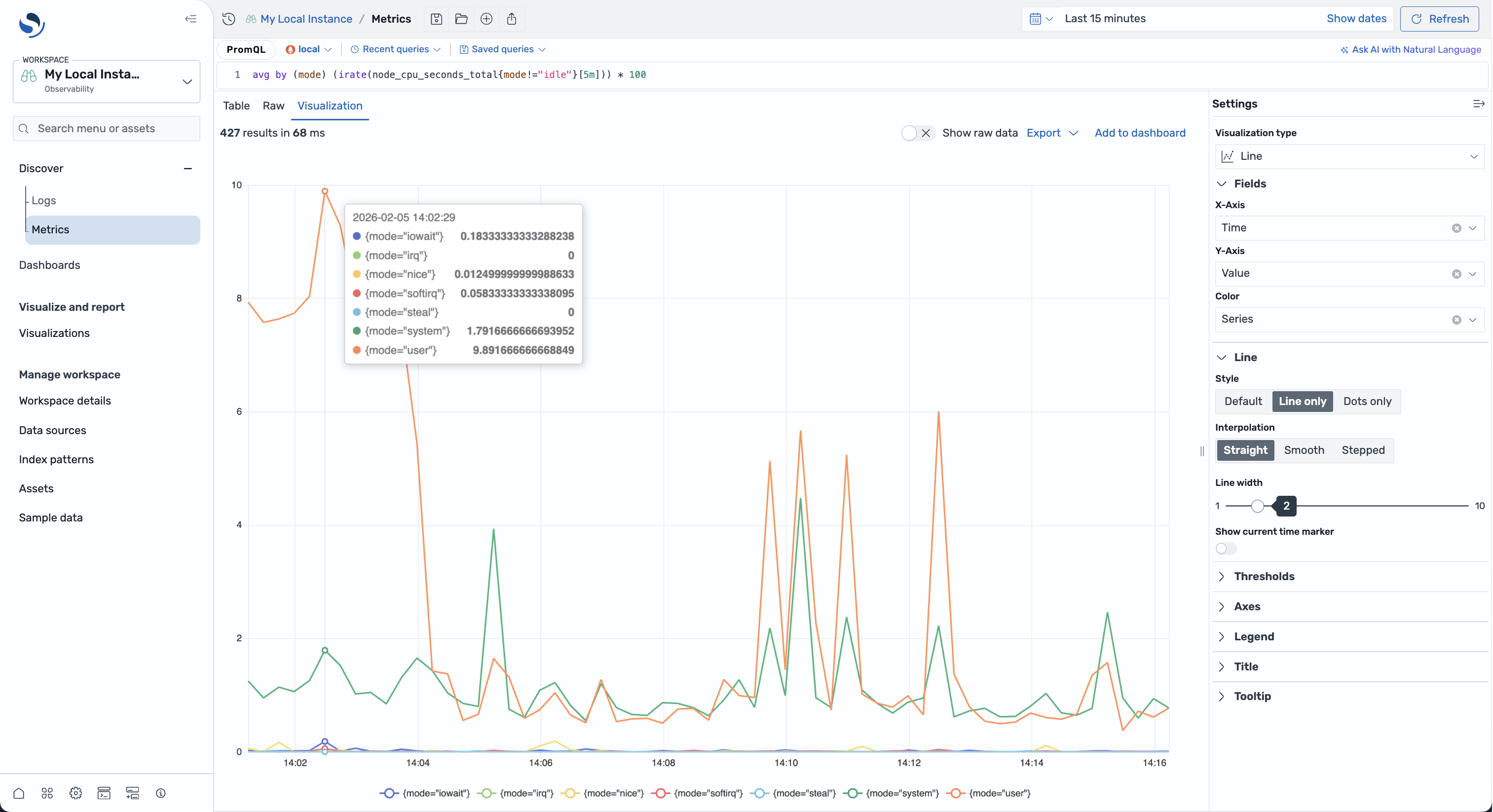
The Metrics page is available in Observability workspaces. To access the Metrics page, navigate to an Observability workspace. Then, in the left navigation, expand Discover and select Metrics.
Configuring a Prometheus data source
Section titled “Configuring a Prometheus data source”Before you start, configure a Prometheus data source using one of the following methods.
Configuring a Prometheus data source in OpenSearch Dashboards
Section titled “Configuring a Prometheus data source in OpenSearch Dashboards”To configure a Prometheus data source in OpenSearch Dashboards, follow these steps:
- In the left navigation, go to Data Administration > Data sources.
- Select Create data source.
- Select Prometheus.
- Enter a Data source name and optional Description.
- Enter the Prometheus URI endpoint (for example,
http://prometheus-server:9090). - Configure the Authentication method:
- No authentication: Use if your Prometheus server does not require authentication.
- Basic authentication: Enter a username and password.
- AWS Signature Version 4: Use for Amazon Managed Service for Prometheus.
- Select Connect.
Configuring a Prometheus data source using the API
Section titled “Configuring a Prometheus data source using the API”Alternatively, you can configure a Prometheus data source programmatically. For more information, see the Data sources documentation.
Query panel
Section titled “Query panel”You can write and execute metric queries in the query panel at the top of the Metrics page. The query editor provides autocomplete suggestions and syntax highlighting for PromQL.
Writing queries
Section titled “Writing queries”Write queries using PromQL syntax. For example:
up{job="prometheus"}Running queries
Section titled “Running queries”To run a query, enter your query in the query editor and then select the Refresh button.
You can run multiple PromQL queries together by separating them with a semicolon (;):
up{job="prometheus"};node_cpu_seconds_total{mode="idle"};Each query runs independently, and the results are combined in the output.
Time filter
Section titled “Time filter”Use the time filter to specify the time range for your metric data:
- Quick select: Choose a relative time range (for example, the last 15 minutes or the last 1 hour).
- Commonly used: Select from predefined time ranges.
- Custom: Specify absolute start and end times.
- Auto-refresh: Set an automatic refresh interval.
Viewing results
Section titled “Viewing results”After running a query, the results are displayed in a tabbed interface containing the following views:
-
The Metrics tab displays the latest data point for each series in a table format.
-
The Raw tab shows the latest data point for each series as raw JSON returned by the data source.
-
The Visualization tab provides interactive charts for your metric data.
Configuring visualizations
Section titled “Configuring visualizations”When the Visualization tab is selected, a settings panel appears on the right side of the screen. Use this panel to:
- Select a chart type: Choose from line, bar, pie, gauge, or table visualizations.
- Map axes: Assign fields to the X and Y axes.
- Customize styles: Adjust colors, legends, gridlines, and other visual options.
When you modify the settings, the visualization is updated automatically.