
Discover Traces
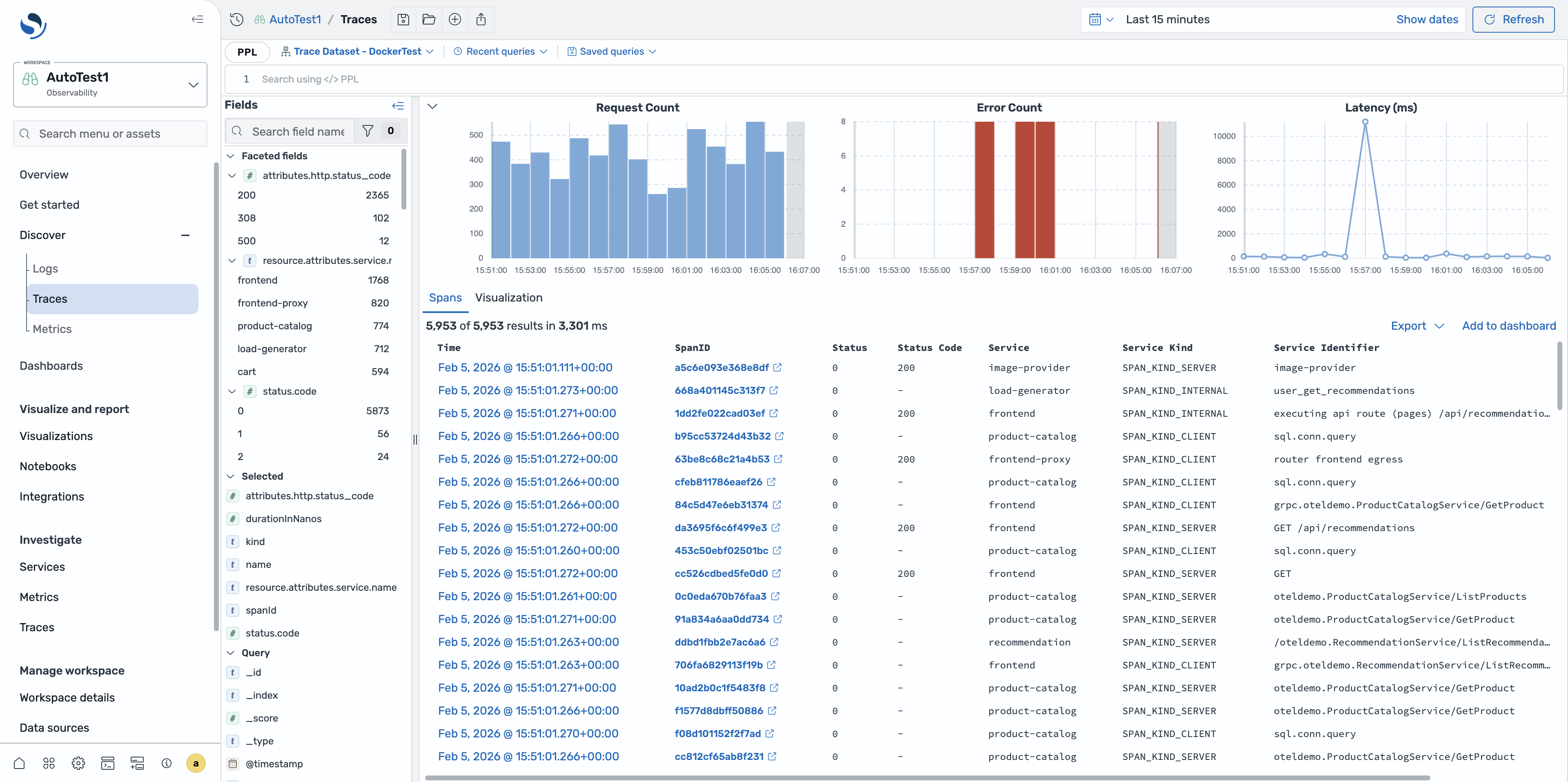
The Discover Traces page in OpenSearch Dashboards provides an enhanced way to explore and analyze trace data within the Observability plugin. This page extends the traditional Discover experience by offering specialized capabilities for working with trace data.
Accessing the Traces page
Section titled “Accessing the Traces page”To access the Traces page:
- Navigate to an Observability workspace in OpenSearch Dashboards.
- In the left navigation, expand Discover and select Traces.
Configuring trace datasets
Section titled “Configuring trace datasets”To configure trace datasets, use one of the following options.
Automatic dataset creation
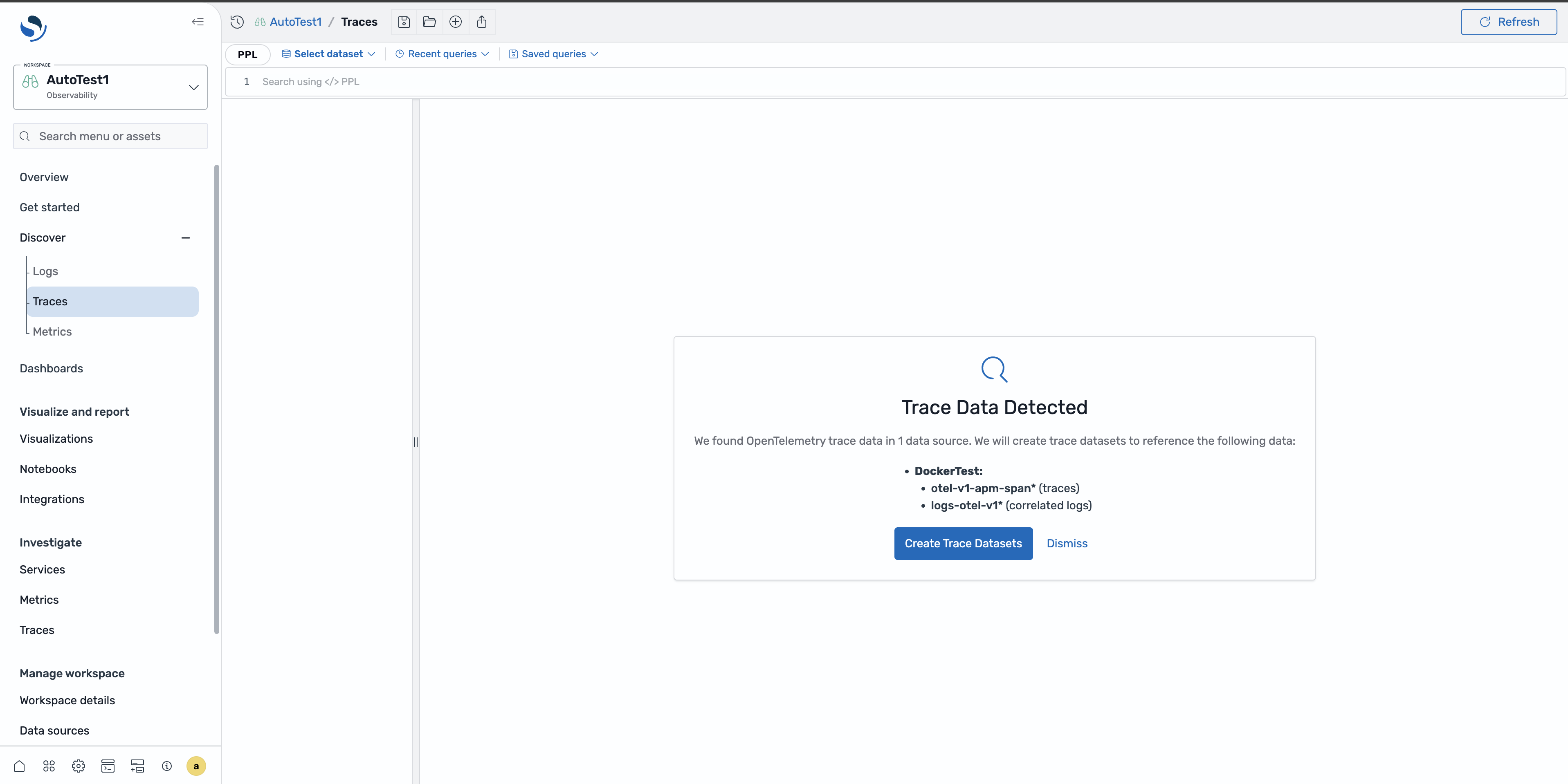
Section titled “Automatic dataset creation”If your data source follows the OpenTelemetry naming conventions, the Traces page can automatically create trace and log datasets from your data by searching for indexes with the following naming patterns:
- Traces:
otel-v1-apm-span* - Correlated logs:
logs-otel-v1*
When these indexes are detected, select the Create Trace Datasets button to automatically generate the datasets and establish the correlation relationship between traces and logs.
Manual dataset creation
Section titled “Manual dataset creation”If your indexes use different naming conventions, you must manually create the datasets and configure the correlation relationships between traces and logs. Navigate to the Datasets tab and create a dataset with the Trace signal type.
Exploring trace data
Section titled “Exploring trace data”The Traces page provides comprehensive tools for analyzing span data and understanding trace performance, including:
- RED metrics: View rate, error, and duration metrics at the top of the page to quickly assess trace performance and health.
- Faceted fields: Use faceted field filters to filter and analyze specific aspects of your traces.
- Span table: Browse spans using sortable columns and quick access to detailed information.
Viewing a specific span
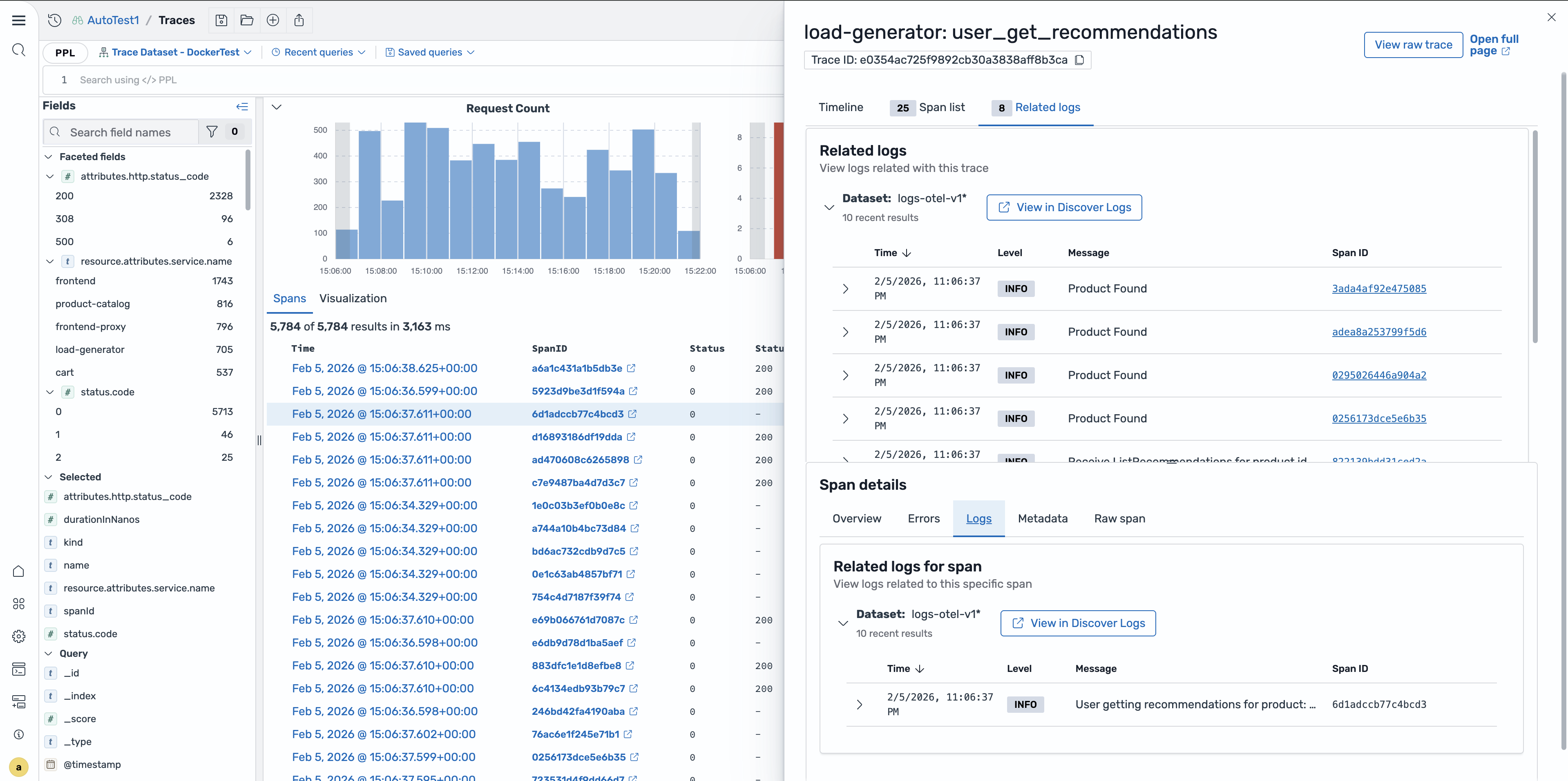
Section titled “Viewing a specific span”To view detailed information about a specific span, select the timestamp in the span table. This opens the Trace Details flyout.
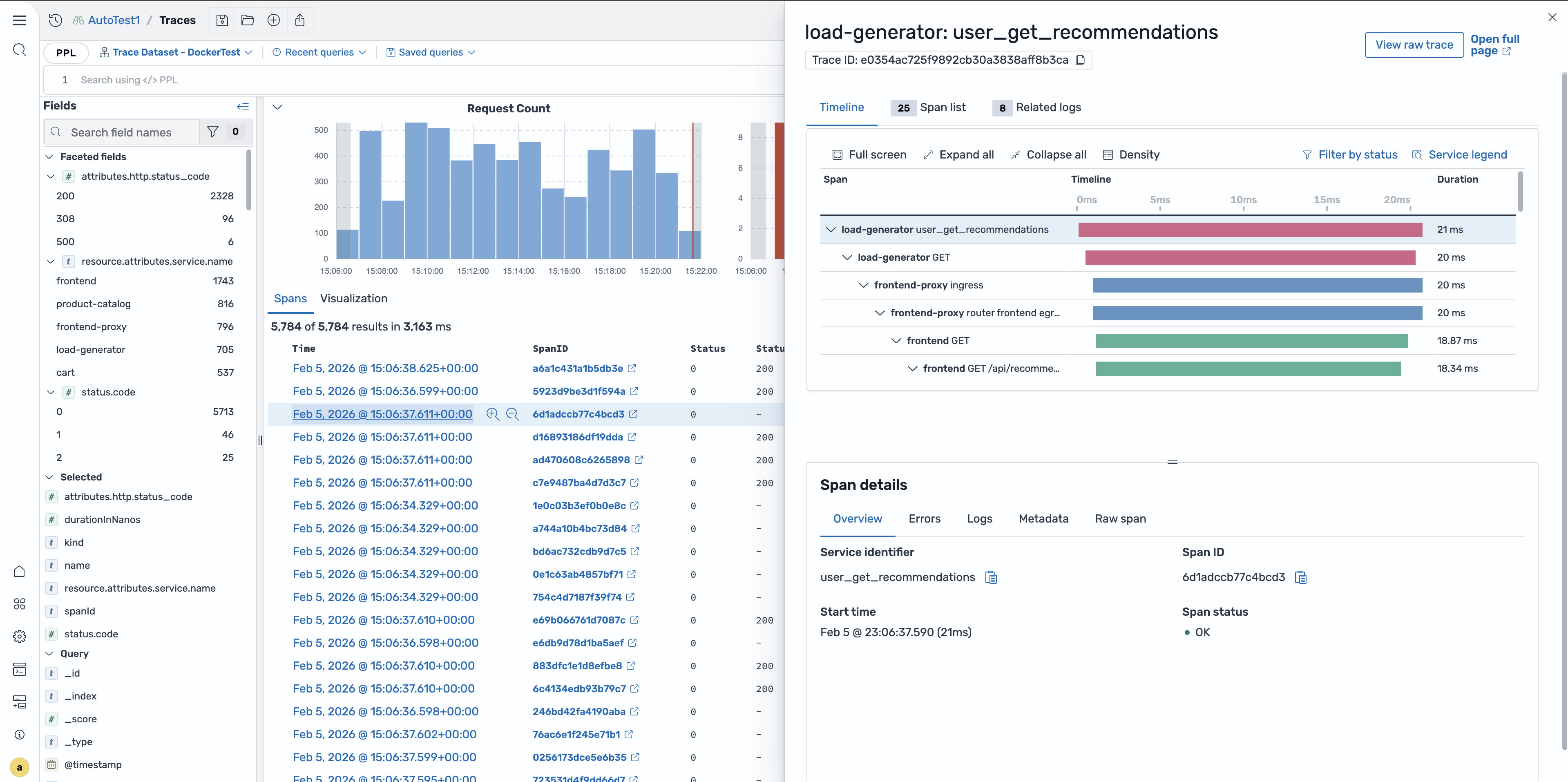
The Trace Details flyout displays the following information:
- The relationship of the selected span within its parent trace.
- The hierarchical structure showing how the span relates to other spans in the same trace.
- The span attributes and metadata.
Trace detail page
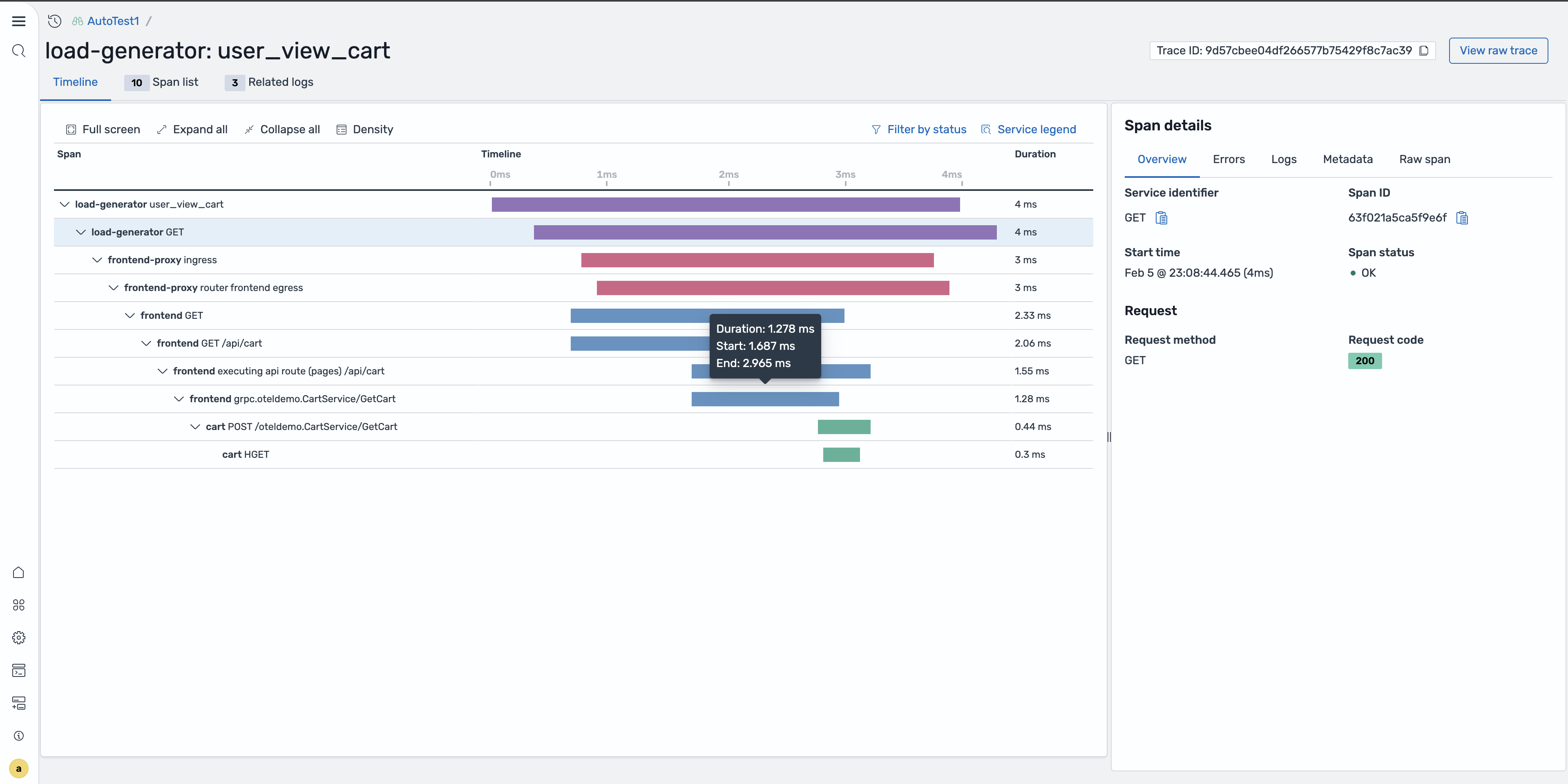
Section titled “Trace detail page”To access the full trace detail page from the Trace Details flyout, use one of the following options:
- Select the span ID from the Traces page table.
- Select Open full page from the flyout.
The full page view provides an expanded interface for deeper trace analysis, featuring a timeline visualization that shows the hierarchical span relationships and durations, along with detailed span information in a side panel.
Correlating traces with logs
Section titled “Correlating traces with logs”The Traces page provides seamless integration with log data, allowing you to navigate from traces to related logs while preserving proper context.
Viewing related logs
Section titled “Viewing related logs”To view the related logs, follow these steps:
- In the Trace Details flyout, locate the Related logs section.
- Select the View in Discover Logs button to navigate to the correlated log entries for the selected trace.
Log redirection with context
Section titled “Log redirection with context”When you select View in Discover Logs, OpenSearch Dashboards automatically redirects you to the Logs page with the trace context applied.
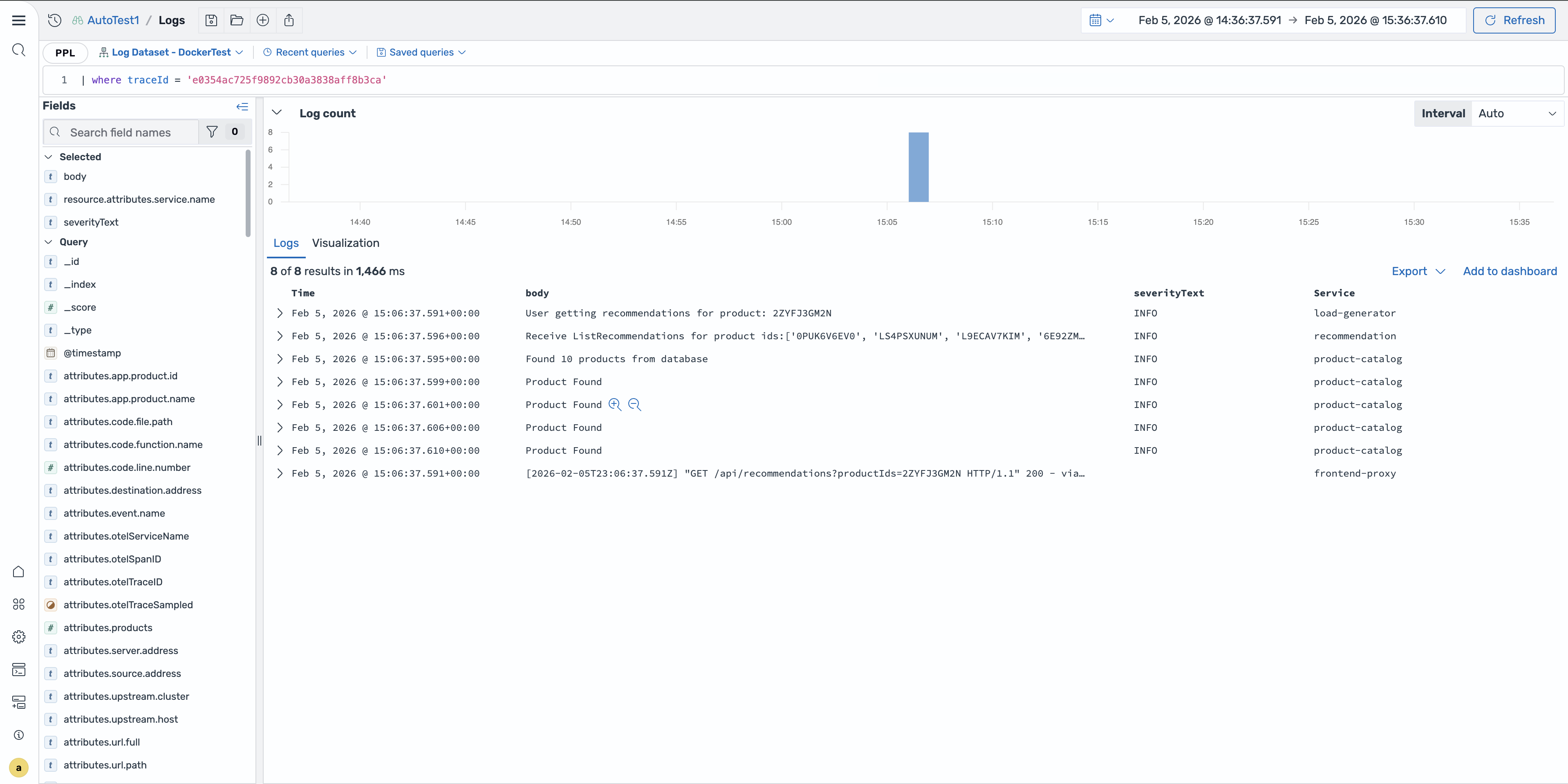
The logs are filtered to show only entries related to the selected trace, making it easier to troubleshoot issues and understand the full context of trace events. Preserving context streamlines the debugging process by providing a unified view of your telemetry data, helping you identify root causes and understand the complete picture of application behavior.