

Managing dashboard variables
You can create, edit, delete, organize, and view dashboard variables from within a dashboard.
Creating a variable
Section titled “Creating a variable”To create a new variable, follow these steps:
-
Select Dashboards in the left navigation.
-
Open an existing dashboard or select Create > Dashboard to create a new dashboard. If creating a new dashboard, save it first by entering a title and selecting Save.
-
At the top of the dashboard, select Add variable.
-
Configure the variable settings. The Add variable panel contains the following sections:
- General configuration:
- Name (required): The identifier used to reference the variable in queries using
$variableNameor${variableName}syntax. - Label (optional): A display name shown at the top of the dashboard.
- Description (optional): Additional context about the variable’s purpose.
- Type (required): Select Query or Custom. For more information about variable types, see Variable types.
- Name (required): The identifier used to reference the variable in queries using
- Query type configuration (for query type variables):
- Options Query: Define a query to fetch variable options dynamically.
- If needed, update the default language (PPL) to PromQL using the language toggle.
- In the Select dataset dropdown list, select a dataset. For PPL, select an index pattern. For PromQL, select a Prometheus data source.
- Write a query that returns a single column of values.
- Select Preview to validate the query and view the first 100 results.
- Regex (optional): Filter query results using a regular expression. Only values matching the pattern are displayed.
- Refresh: Choose when to update variable options:
- On dashboard load: Options are fetched once when the dashboard loads.
- On time range change: Options refresh automatically when the dashboard time range changes.
- Options Query: Define a query to fetch variable options dynamically.
- Custom type configuration (for custom type variables):
- Custom options: Enter custom values for the variable. Type a value and press Enter to add it. The maximum of 100 options can be displayed in the dropdown list.
- Selection configuration (available for both query and custom types):
- Sort: Choose how options are sorted in the dropdown list (Disabled, Alphabetical (ascending or descending), or Numerical (ascending or descending)).
- Allow multiple selections: Enables you to select multiple values from the dropdown.
- Include All option (only available when multiple selections are enabled): Adds an All option to the dropdown that selects all available values.
- General configuration:
-
Select Add variable to save.
The variable appears at the top of the dashboard.
Managing existing variables
Section titled “Managing existing variables”The Manage variables panel lists all existing variables, including their type, name, and configuration options. To access this panel, follow these steps:
- From Dashboards, select the dashboard to update.
- On the top, toggle the Edit selector to enter edit mode.
- In the upper-left corner, select the Manage variables icon, as shown in the following image.
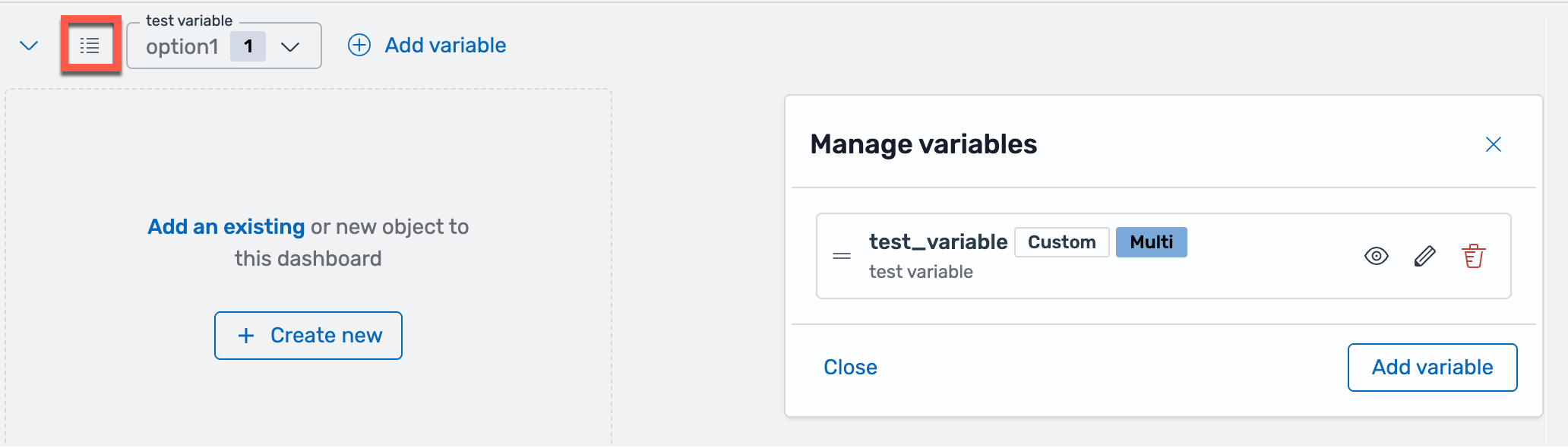
Editing a variable
Section titled “Editing a variable”To edit an existing variable, follow these steps:
- Open the Manage variables panel.
- Select the Edit icon for the variable you want to modify.
- Make your changes.
- Select Update variable to save.
Deleting a variable
Section titled “Deleting a variable”To delete a variable, follow these steps:
- Open the Manage variables panel.
- Select the Delete icon for the variable you want to remove.
- Confirm the deletion in the dialog.
Organizing variables
Section titled “Organizing variables”Variables are displayed at the top of the dashboard in the order they appear in the management panel.
To reorder variables, follow these steps:
- Open the Manage variables panel.
- Drag the reorder handle on the left side of a variable.
- Drop it in the desired position.
- Save the dashboard to apply the new order.
Hiding variables
Section titled “Hiding variables”You can hide variables from the top of the dashboard while keeping them available for use in queries.
To hide or show a variable, follow these steps:
- Open the Manage variables panel.
- Select the Hide/Show icon for the variable.
- Save the dashboard to apply the change.
Variable status indicators
Section titled “Variable status indicators”Each variable displays a status indicator at the top of the dashboard:
- Loading: A spinner appears while the system fetches options.
- Error: An error icon appears with a tooltip showing the error message. The dropdown is disabled.
- No options: If a variable query returns no results, “No options” is displayed in the dropdown.
URL synchronization
Section titled “URL synchronization”Variable values are automatically synchronized to the dashboard URL using the variableValues query parameter:
?variableValues=(service:(api),region:(us-east,us-west))URL synchronization enables the following functionality:
- Send a link to a dashboard with specific variable values preselected.
- Save a dashboard view with your preferred variable settings.
- Preserve variable selections across page refreshes.
Variable dependencies
Section titled “Variable dependencies”Query type variables can reference other variables in their queries. The following example shows a query variable that references another variable:
source=logs | where region=$region | dedup service | fields serviceIn this example, the service variable depends on the region variable. When the region variable changes, the service variable automatically refreshes its options.
Keep the following considerations in mind:
- Avoid circular dependencies where Variable A references Variable B, and Variable B references Variable A.
- Variables are evaluated in the order they appear in the management panel. Place dependent variables after the variables they reference.