

Table
A table chart displays query results in a tabular format with rows and columns, making it ideal for viewing raw data or summary statistics.
Creating a table chart
Section titled “Creating a table chart”The following example demonstrates a basic table visualization.
Basic table
Section titled “Basic table”Start with a query that returns multiple fields:
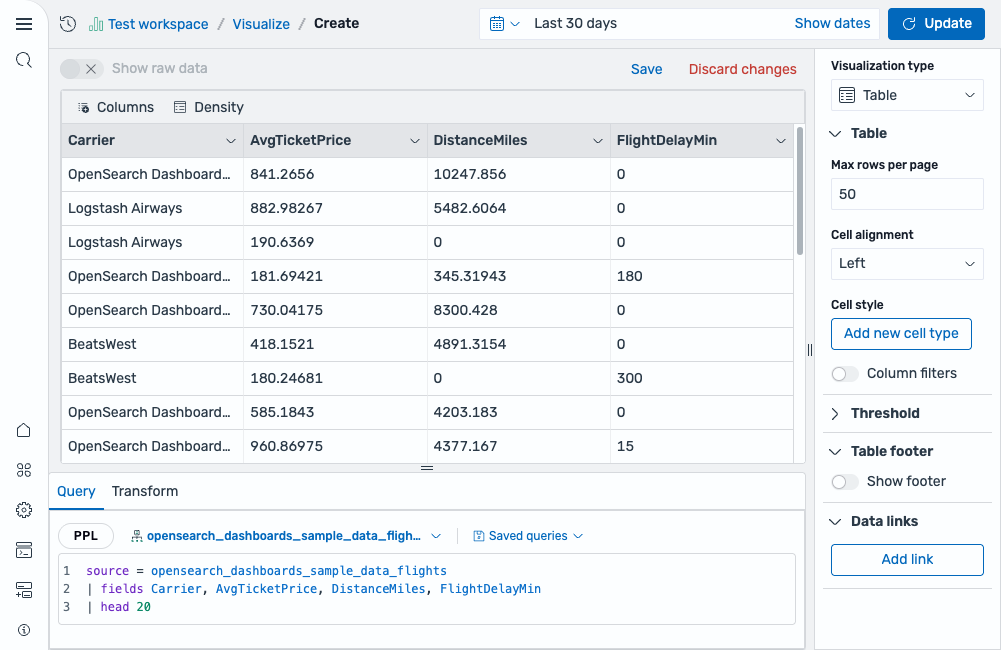
source = opensearch_dashboards_sample_data_flights | fields Carrier, AvgTicketPrice, DistanceMiles, FlightDelayMin | head 20After running this query, select Table as the chart type. The result is a table displaying the selected fields as columns, as shown in the following image.
Configuring a table chart
Section titled “Configuring a table chart”You can configure the following settings in the configuration panel.
| Setting | Description |
|---|---|
| Max rows per page | Sets the maximum number of rows displayed per page. |
| Cell alignment | Controls the text alignment within cells. Supported values: Auto, Left, Center, Right. |
| Cell style | Select Add new cell type to apply custom styling to specific columns. |
| Column filters | When enabled, displays filter controls in column headers for interactive filtering. |
Threshold
Section titled “Threshold”For information about configuring thresholds, see Thresholds.
Table footer
Section titled “Table footer”| Setting | Description |
|---|---|
| Show footer | When enabled, displays a footer row with summary calculations for each column. |
Data links
Section titled “Data links”Select Add link to create clickable links within table cells. Use data links to navigate to external URLs or other dashboards based on cell values.